
Adding Books
Librique opens FB2, EPUB and PDF books, including books in ZIP archives. Books are added from the Files app, from other apps and by drag and drop. Downloading from OPDS catalogs is described in the OPDS Catalogs chapter.
From the Files app
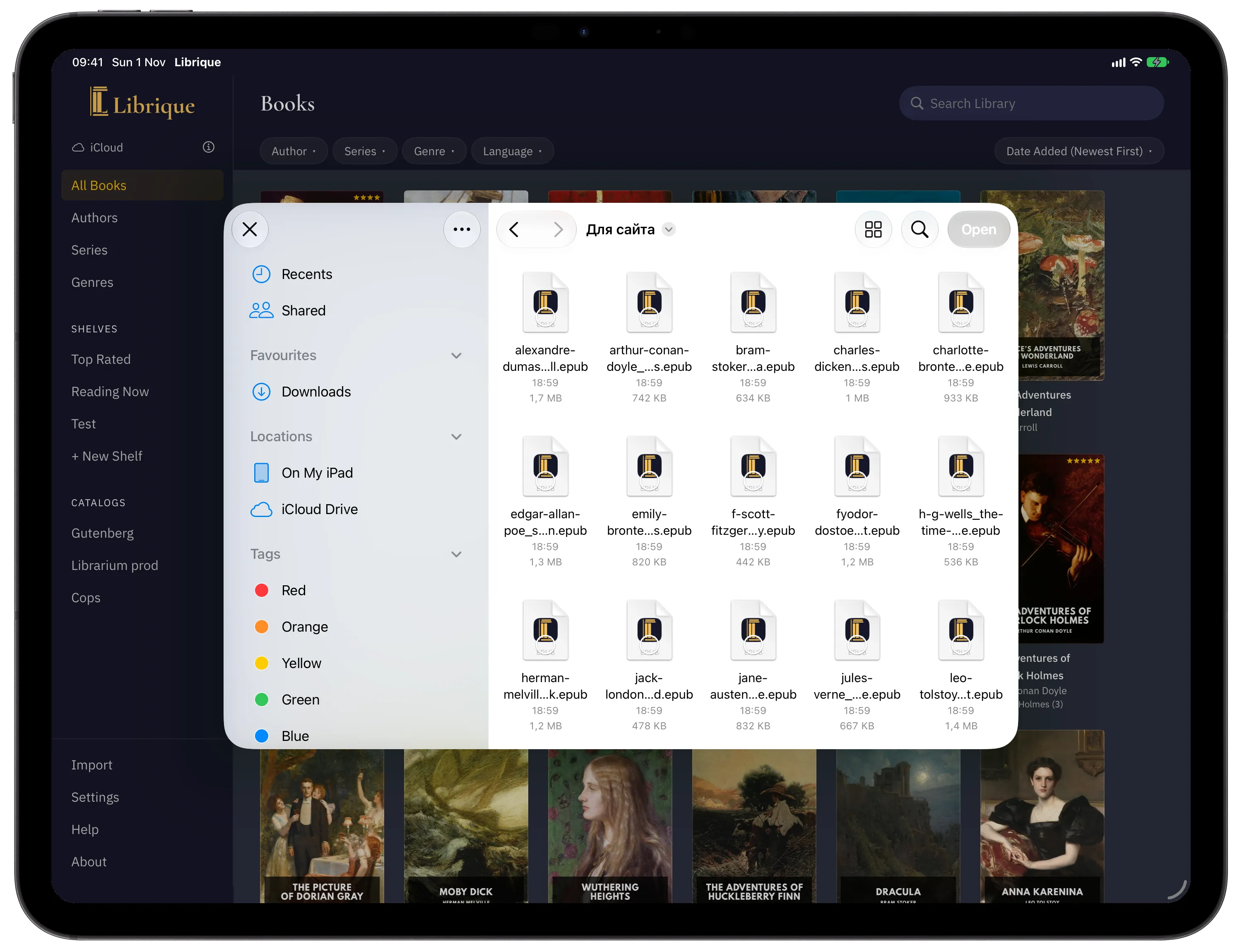
- Tap Import: on iPad, at the bottom of the sidebar; on iPhone, in the ☰ menu.
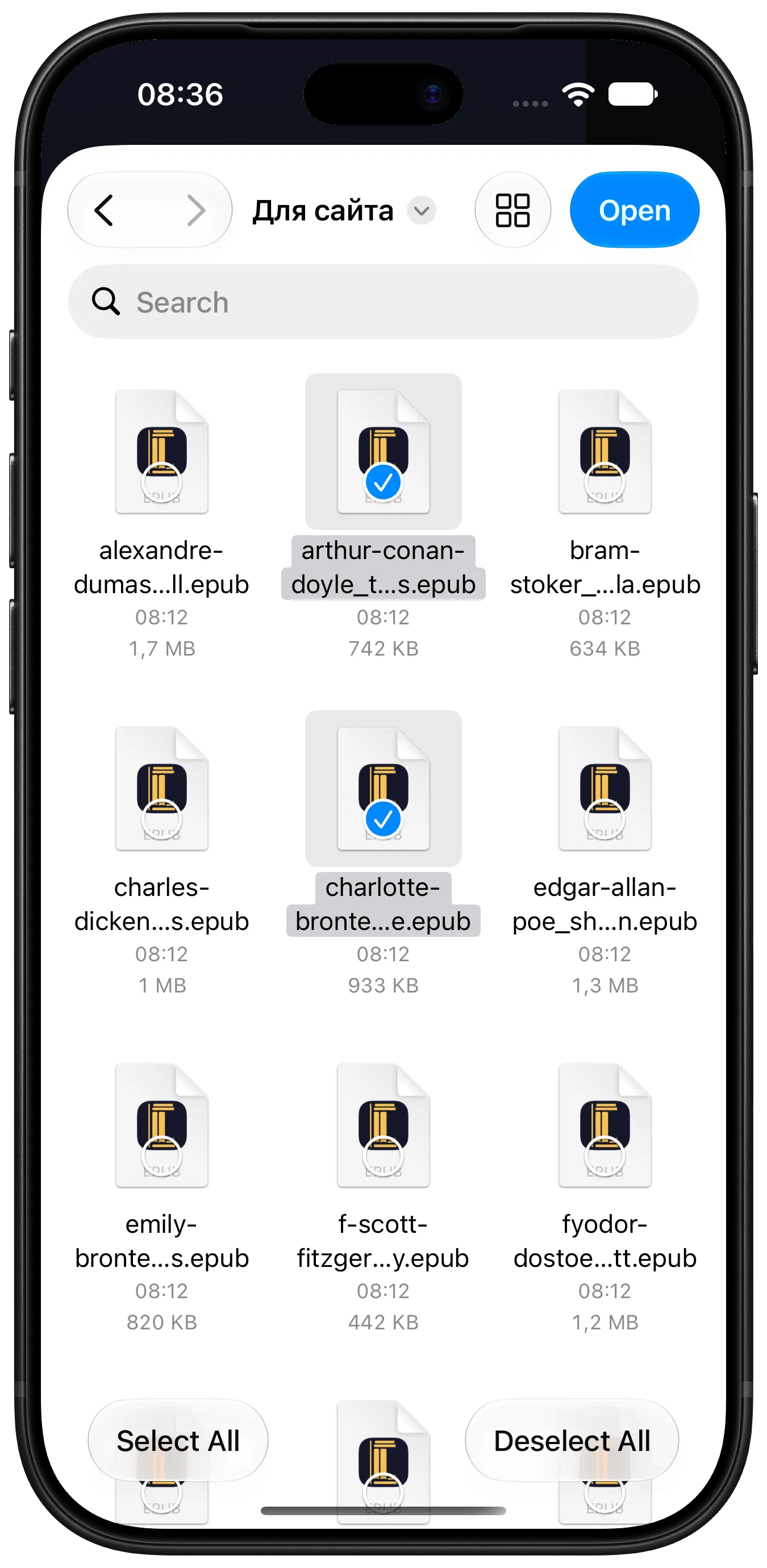
- Select the books. Several files can be selected at once. Files in other formats are unavailable in the file picker.
- Tap Open.
From other apps
A book file can be sent to Librique from another app, such as Mail, Safari or Files: Share → Librique. If Librique is not in the list of apps, tap More at the end of the list.
By drag and drop
On iPad, files can be dragged onto the Librique window from another app, for example from Files open alongside. While files are over the window, a frame outlines it. Several files can be dragged at once.
Import progress
Books are added immediately, without confirmation, and appear in the library as they are added. While books are being added, “Files left: N” is shown: on iPad, at the bottom of the sidebar in place of the Import button; on iPhone, at the bottom of the screen. Files selected during import wait their turn.
If all books are added, no window appears. If a file is not added or a similar book is found, the Adding Books window opens at the end.
Book details
The title, authors, series, genres, language, description, publisher, date and cover are taken from the book file:
- FB2 and EPUB — from the details recorded in the file itself.
- PDF — only the title and author from the document properties. The cover is the first non-blank page of the first three.
If the file has no title, the file name without the extension becomes the title. Details and the cover can be corrected on the book page with Edit.
Author and series names that differ from those already in the library only in capitalization, “ё” or spaces are recorded as they already are in the library.
Several formats of one book
If the files being added include the same book in different formats (the title and authors match), they become one book with several formats. For PDF, the file name must also match: the title in PDF properties is often arbitrary.
A second file of the same format of the same book is not added.
ZIP archives
Every FB2, EPUB and PDF book in an archive is added, whatever folder of the archive it is in. Other files in the archive are skipped, and nested archives are not opened. The library keeps the book itself, not the archive.
A book that cannot be read does not affect the other books in the archive: it is listed in the Adding Books window.
Duplicates and similar books
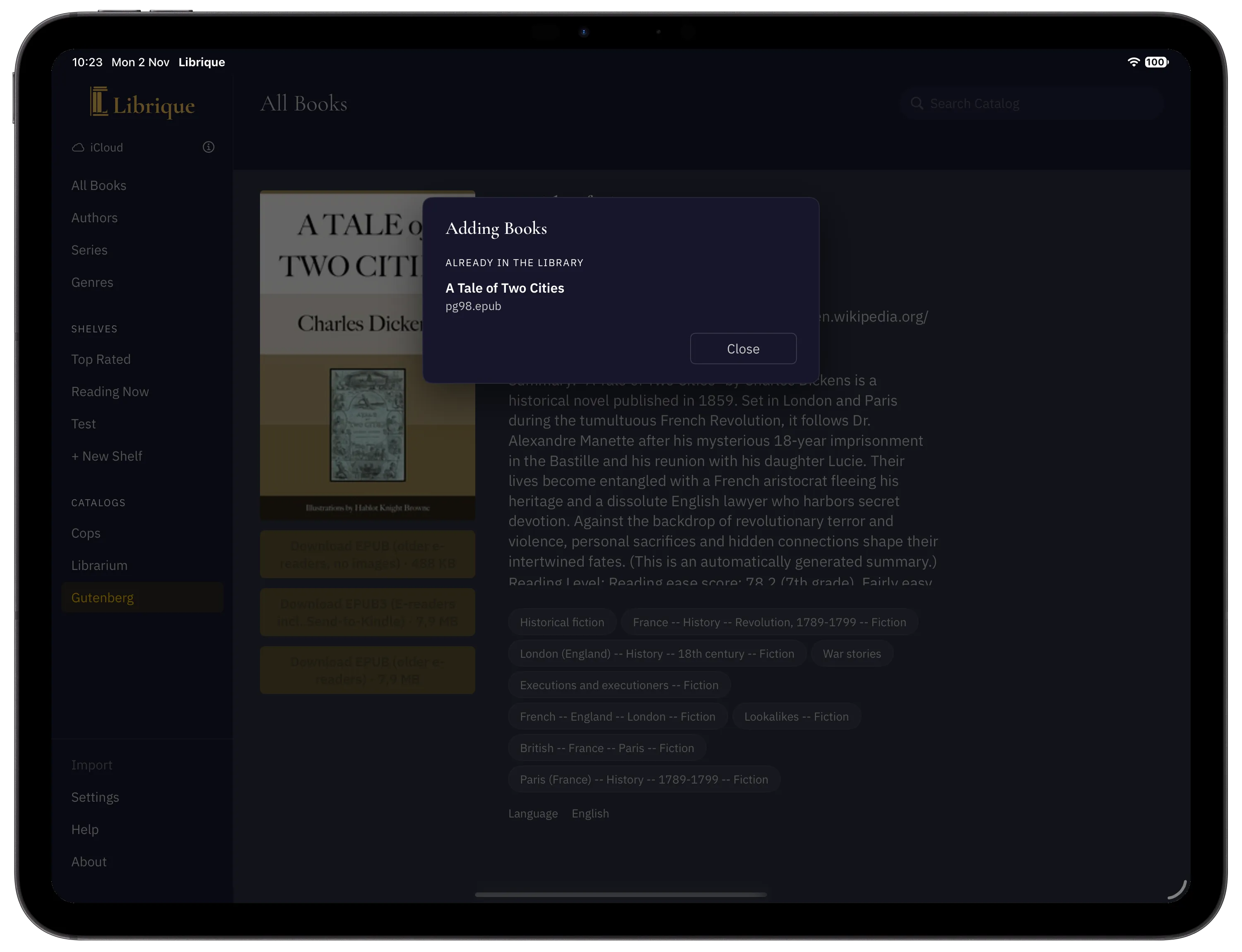
The same file. If the file is already in the library, the book is not added. The Adding Books window lists it under “Already in the library”.
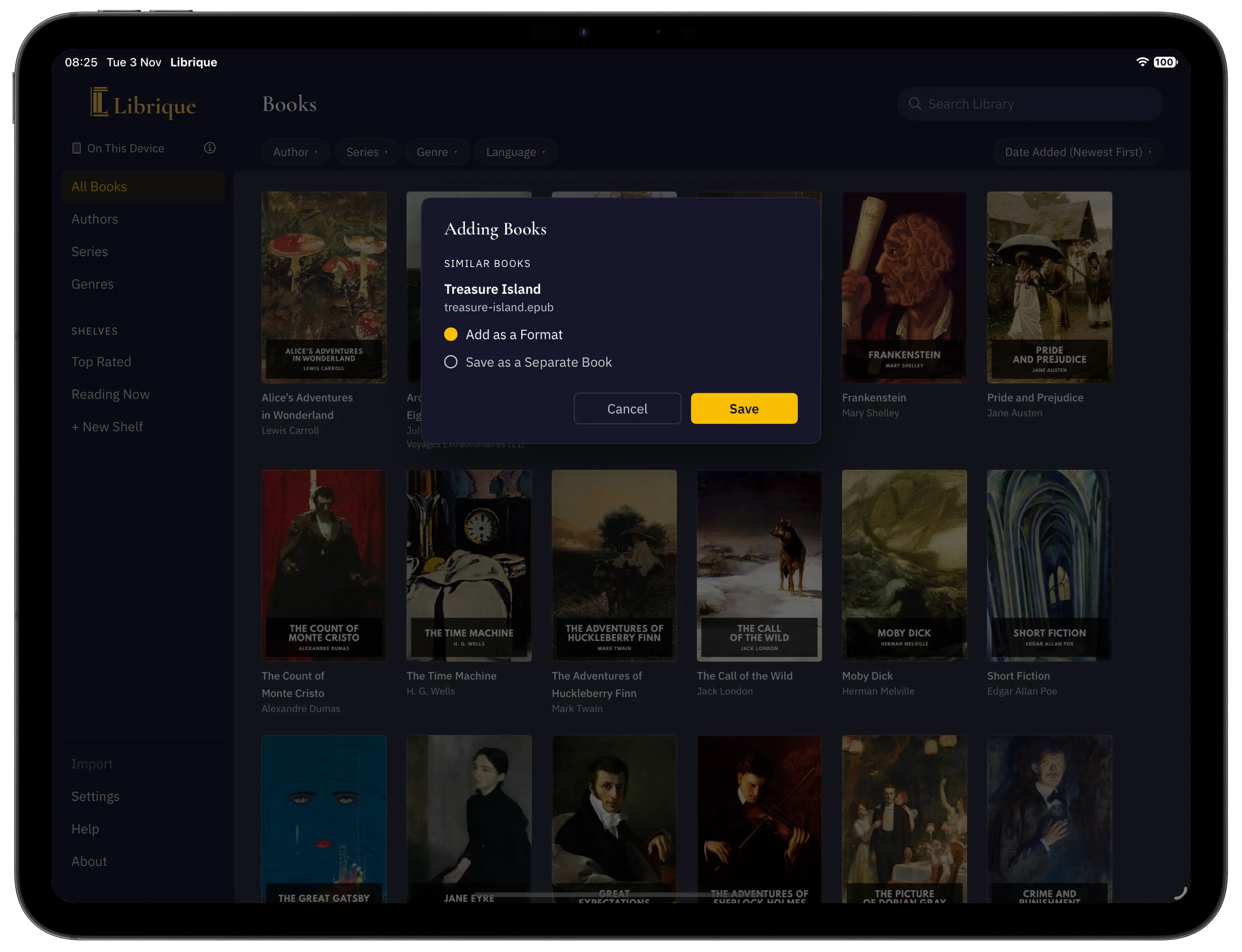
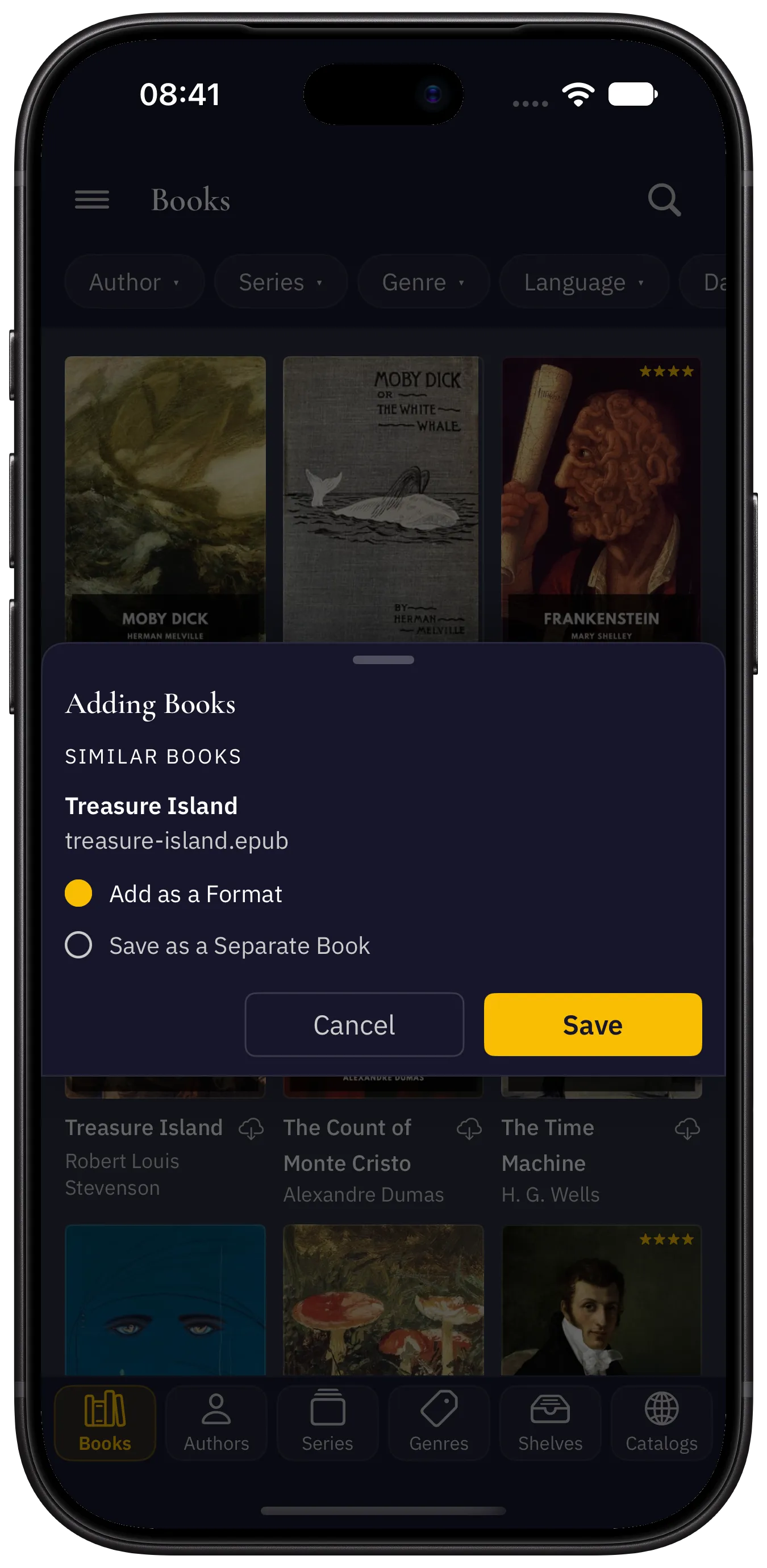
A similar book is a different file with the same title and the same authors as a book in the library. Such a book is not added until a choice is made. The Adding Books window lists it under Similar Books with two options:
- Add as a Format — the file is added to the book in the library; the book’s details and cover stay unchanged. If the book had no cover, the cover is taken from the file. If the book already has a file of this format, the new one is not added.
- Save as a Separate Book — the book is added separately, with its own details.
Save applies the choice and becomes available once a choice is made for every similar book. Cancel closes the window; similar books are not added.
The Adding Books window
The window lists the files that were not added, in groups. Each row shows the book title, if known, and the file name. Books that were added are not listed.
Group | Meaning |
|---|---|
Already in the library | The file is already in the library. |
Format already exists | The book already has a file of this format. |
Could not read the file | The file is damaged or could not be opened. |
Damaged archive | The ZIP archive cannot be opened. |
No books in the archive | The archive contains no FB2, EPUB or PDF files. |
The file is too large | An FB2 or EPUB book is larger than 100 MB, a PDF larger than 200 MB, an archive larger than 1 GB or larger than 2 GB when unpacked. |
Unsupported format | The file is not FB2, EPUB, PDF or ZIP. |
Could not save | The book could not be written to the library. |
Could not download the book | Downloading from an OPDS catalog failed. |
If there are no similar books, Close closes the window.
A new format for a book in the library
A file in another format can also be added to a book by hand: on the book page, Edit → in the Files section, Add File, or drag a file onto that field. FB2, EPUB, PDF and a ZIP archive with a single book are accepted. The new format is saved together with the rest of the edit with Save.
If the book already has a file of this format, delete the old one first. A book’s only file cannot be replaced yet; this will be fixed in a future release. Until then, the new file can be added as a separate book: Import, then Save as a Separate Book in the Adding Books window, then delete the old book.