Reading
A book opens with the Read button on the book page, for example Read EPUB. Librique remembers the reading position and opens the book where reading stopped.
Turning Pages
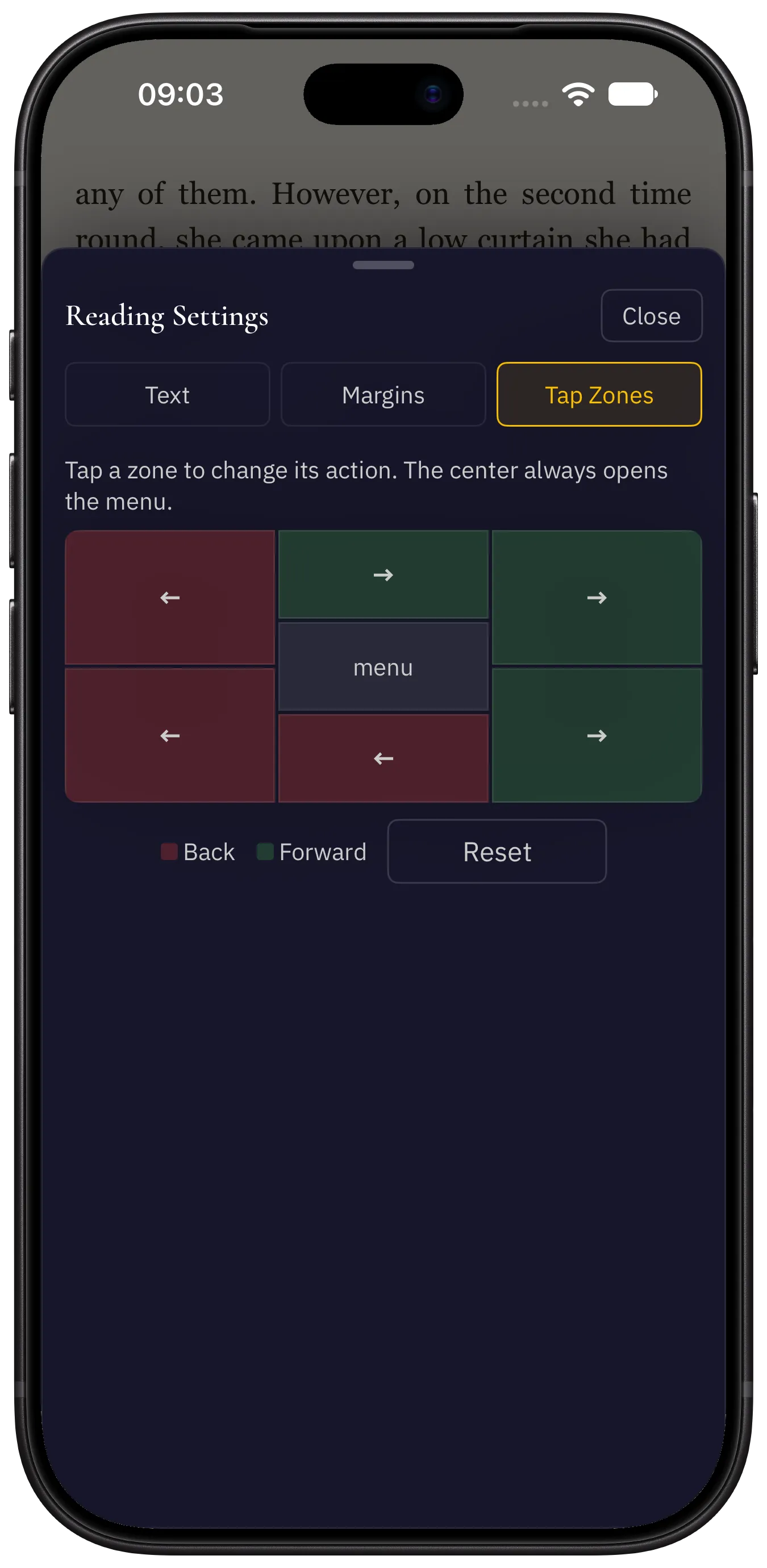
The screen is divided into zones. A tap near the left edge turns back, near the right edge — forward. A tap in the middle of the screen opens the menu.
The page can also be swiped anywhere: left turns forward, right turns back. Tap zones do not affect swiping.
In an enlarged PDF, swiping moves the page. A swipe closes an open footnote and clears a text selection; the page is not turned.
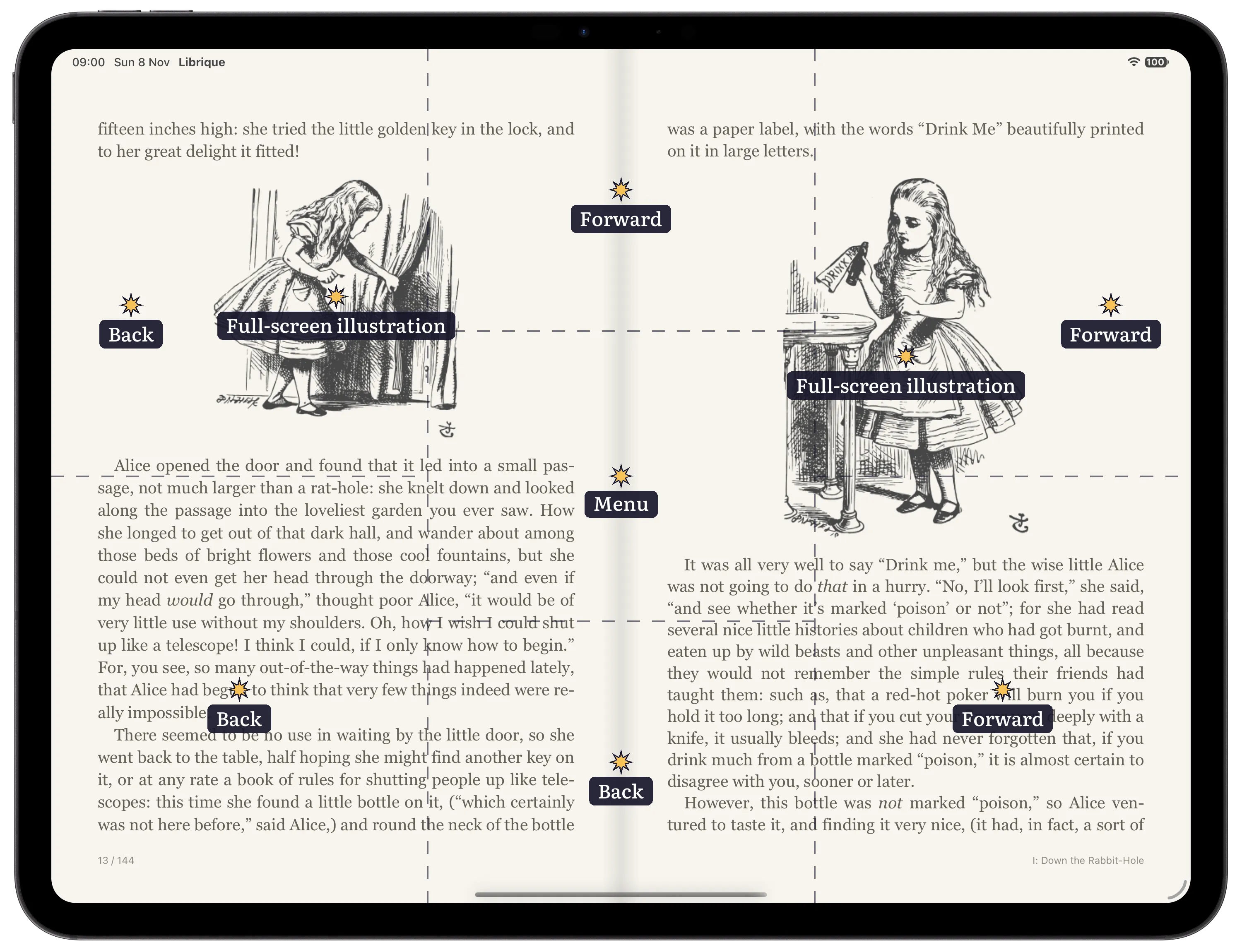
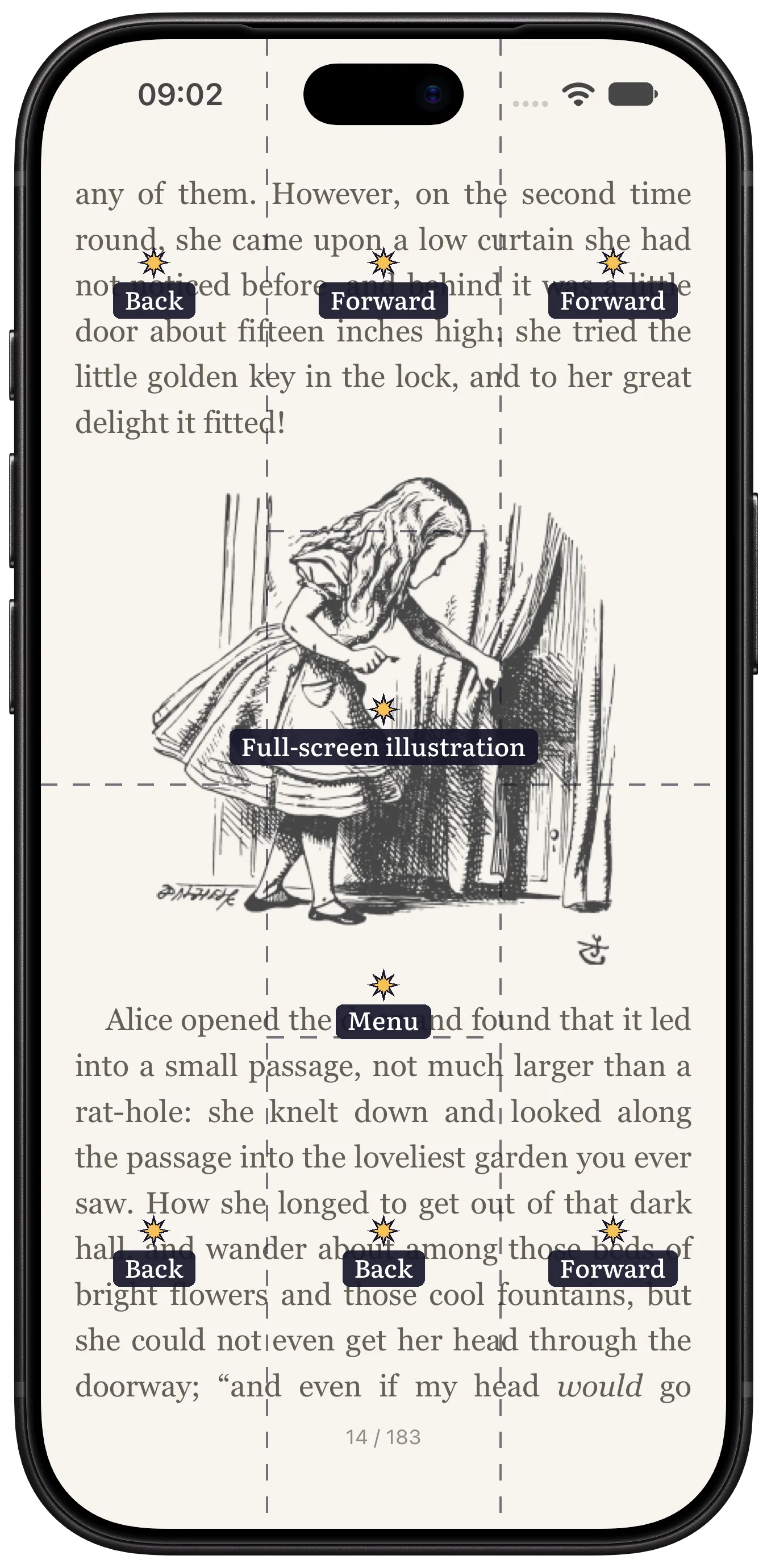
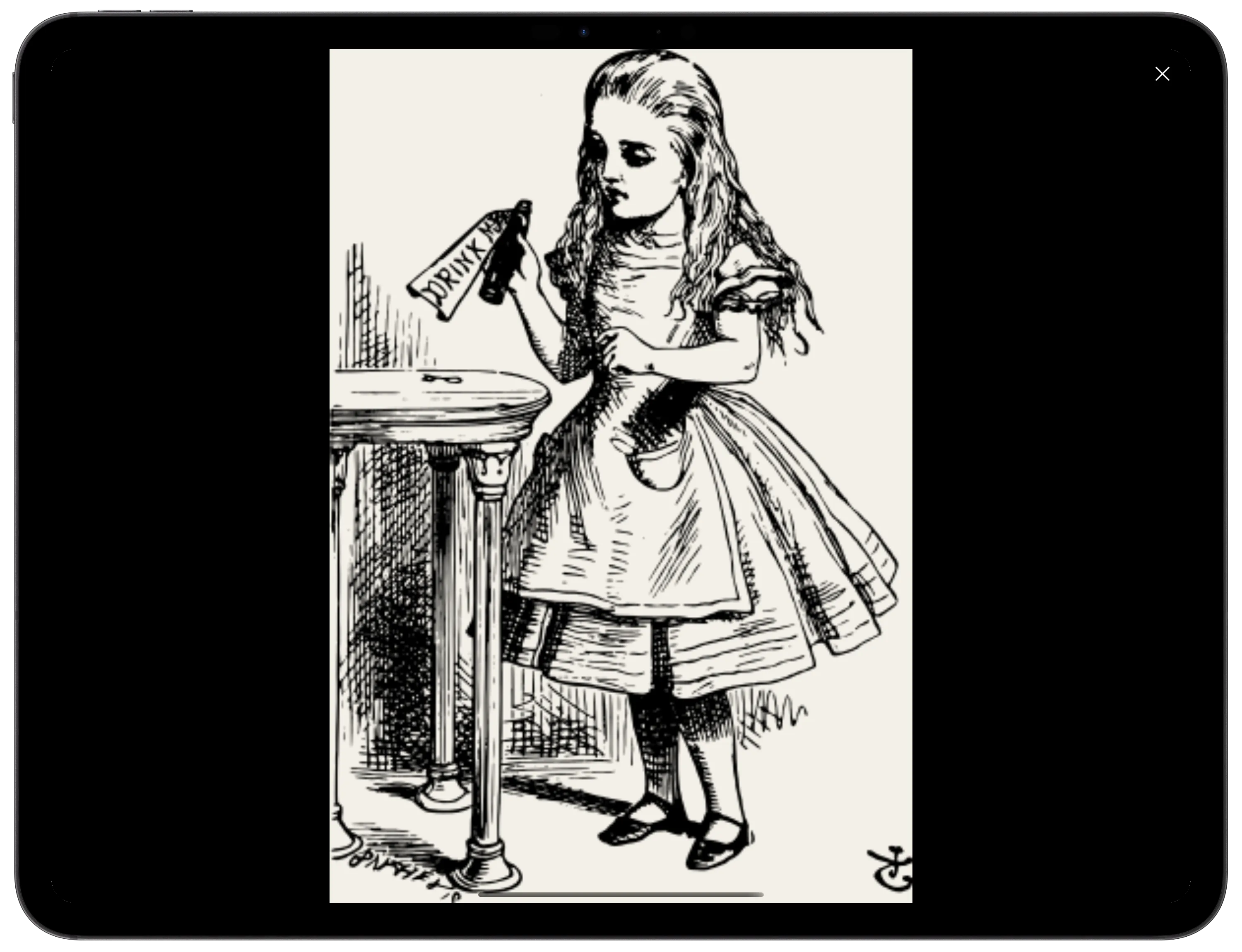
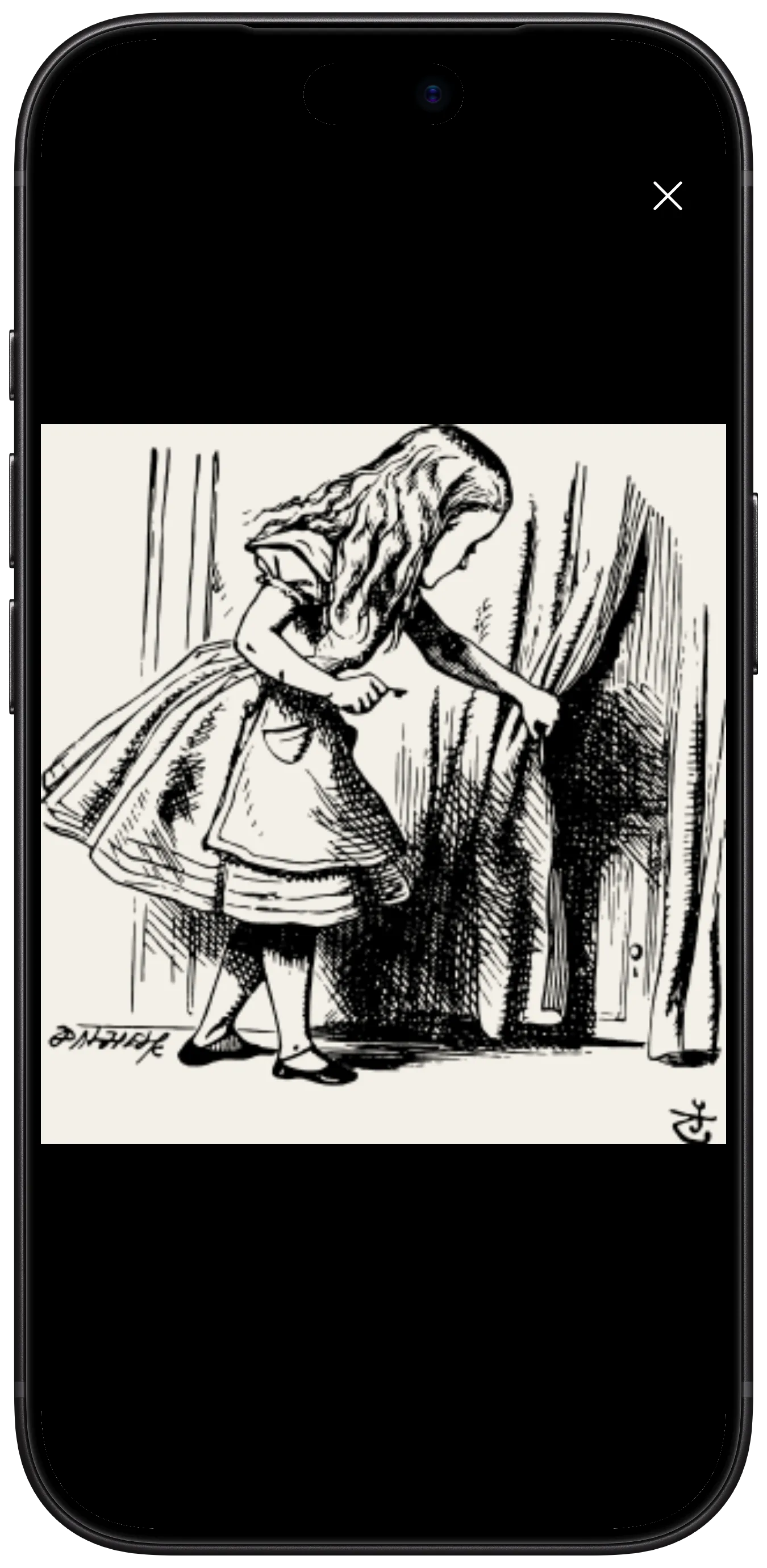
A tap on an illustration always opens it full screen, overriding other taps. So the menu is best opened on a page where nothing gets in its way.
A full-screen illustration can be zoomed with two fingers. To close it, tap ✕.
Which zone turns back and which turns forward is set in the reading settings, under Tap Zones.
Menu
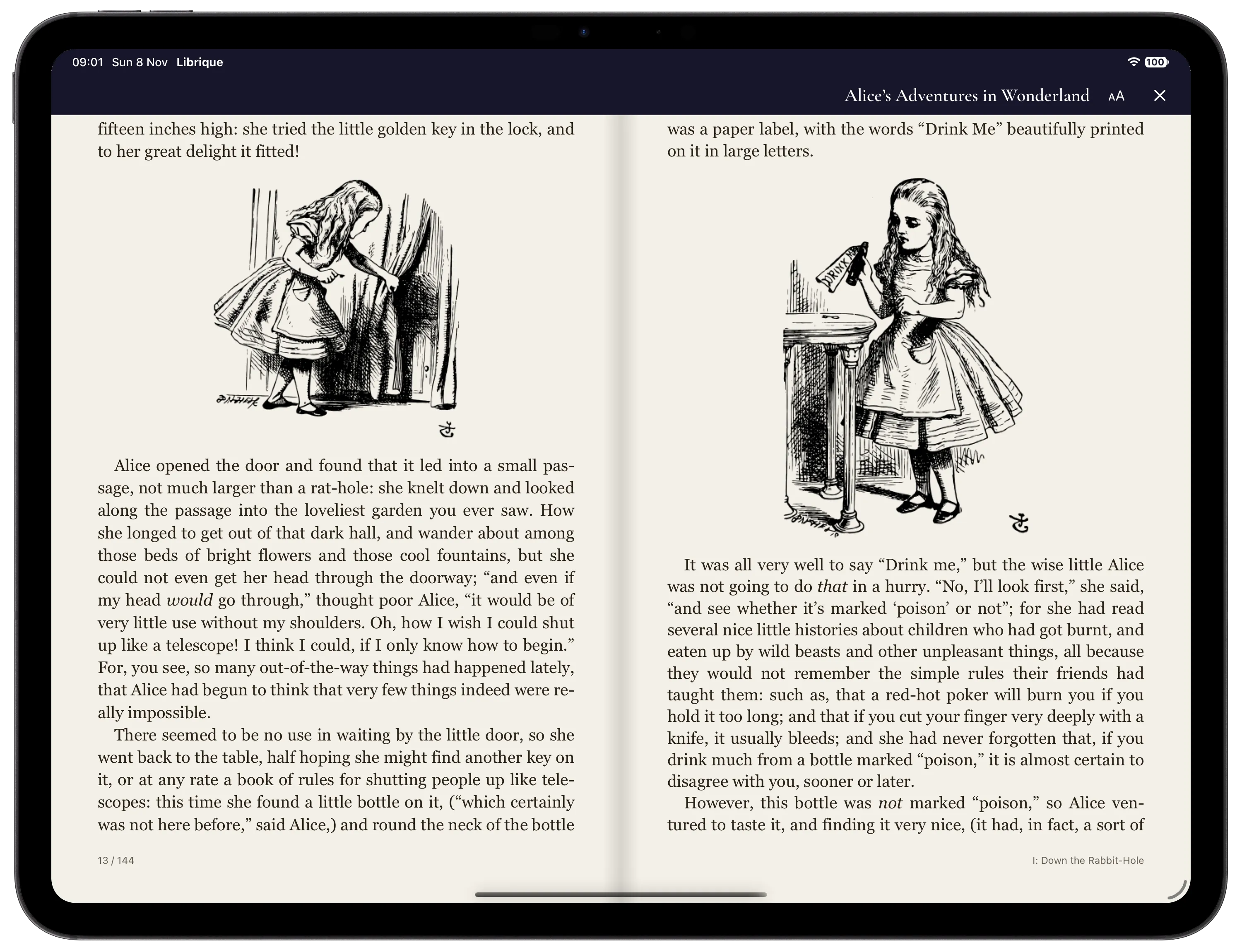
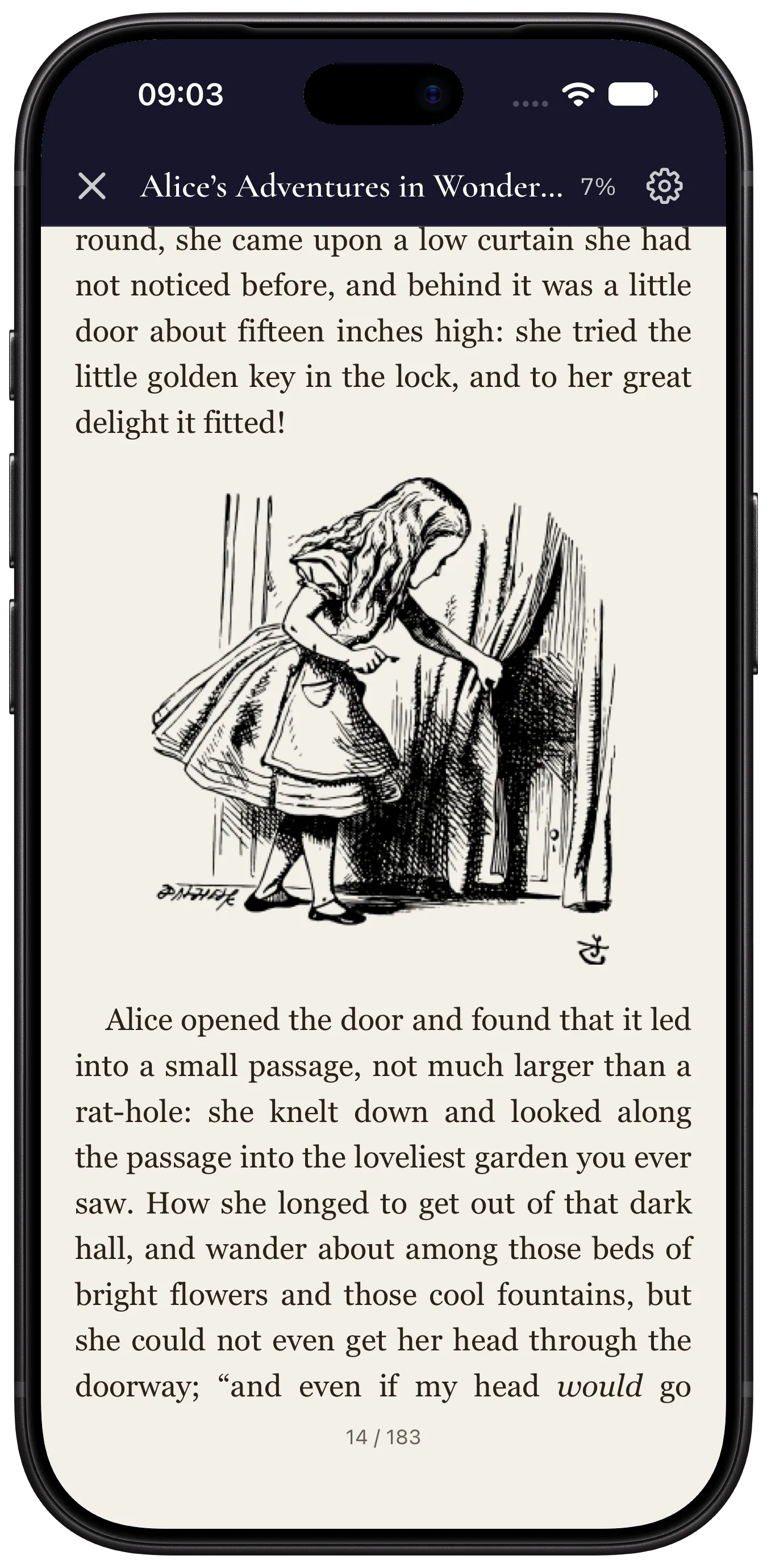
The menu at the top of the screen has:
- Book title — opens the contents.
- aA on iPad, ⚙ on iPhone — reading settings.
- ✕ — closes the book.
Contents
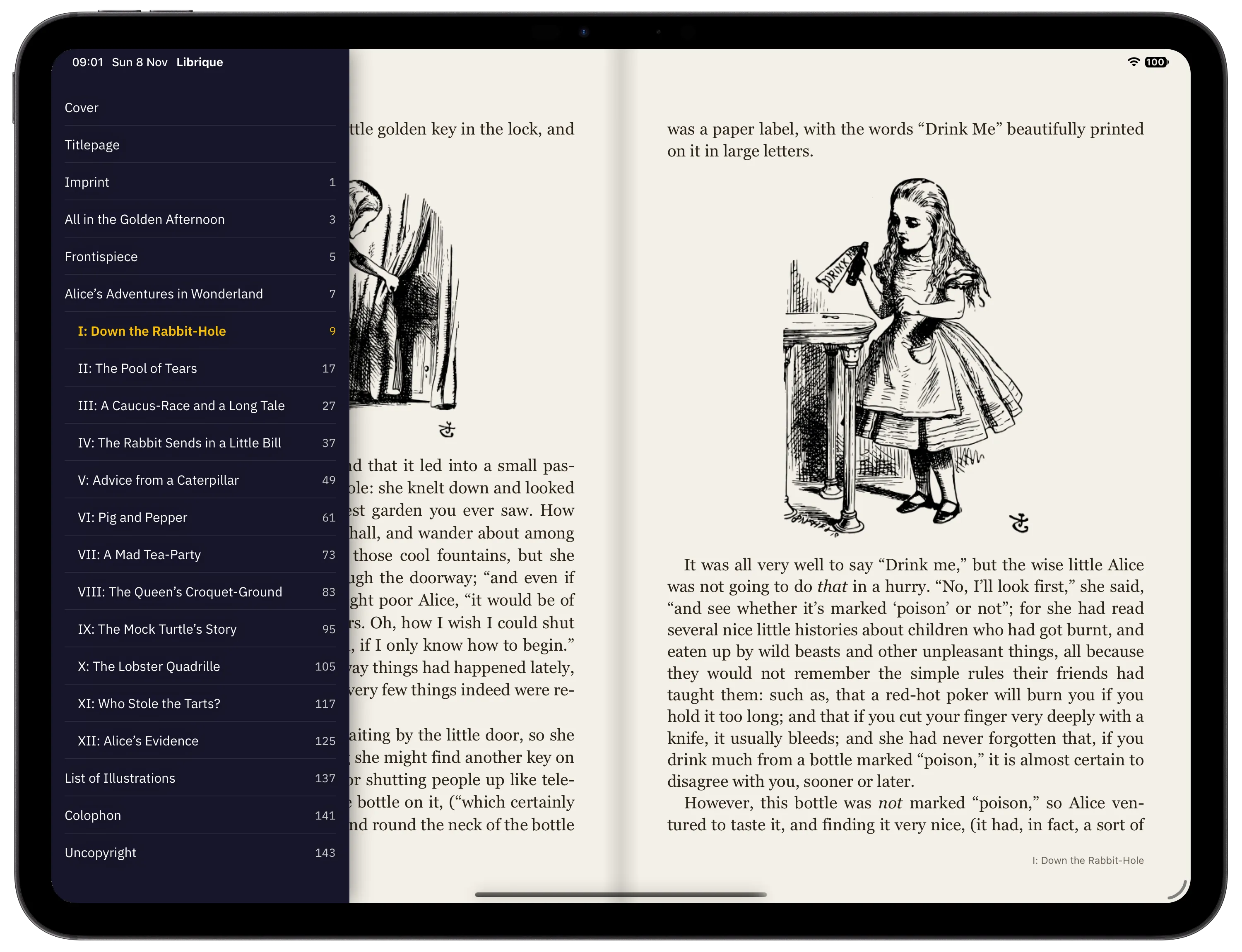
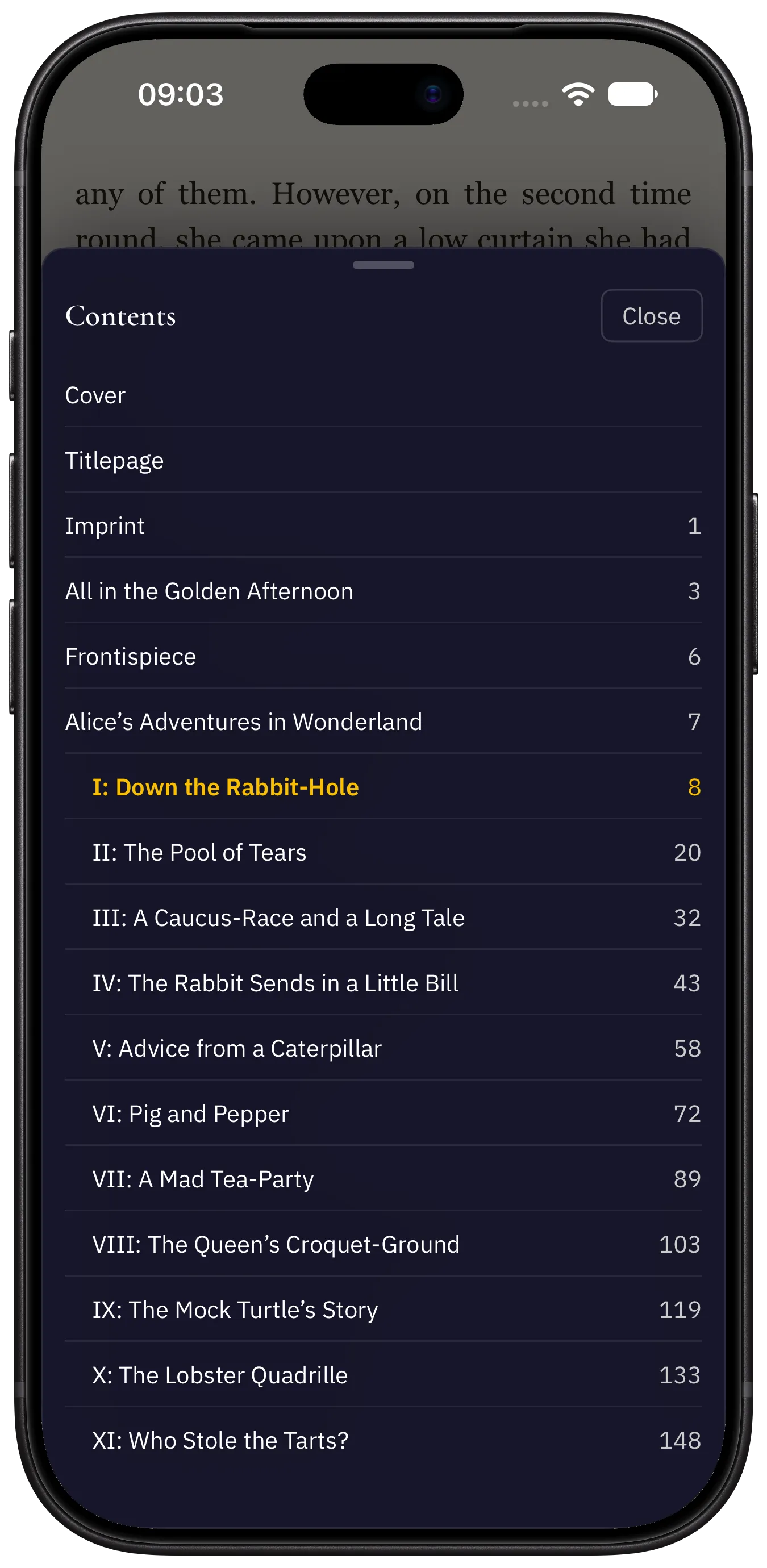
The contents open with a tap on the book title in the menu. A tap on an entry opens the chapter. The current chapter is highlighted.
Reading Settings
The settings apply to all books.
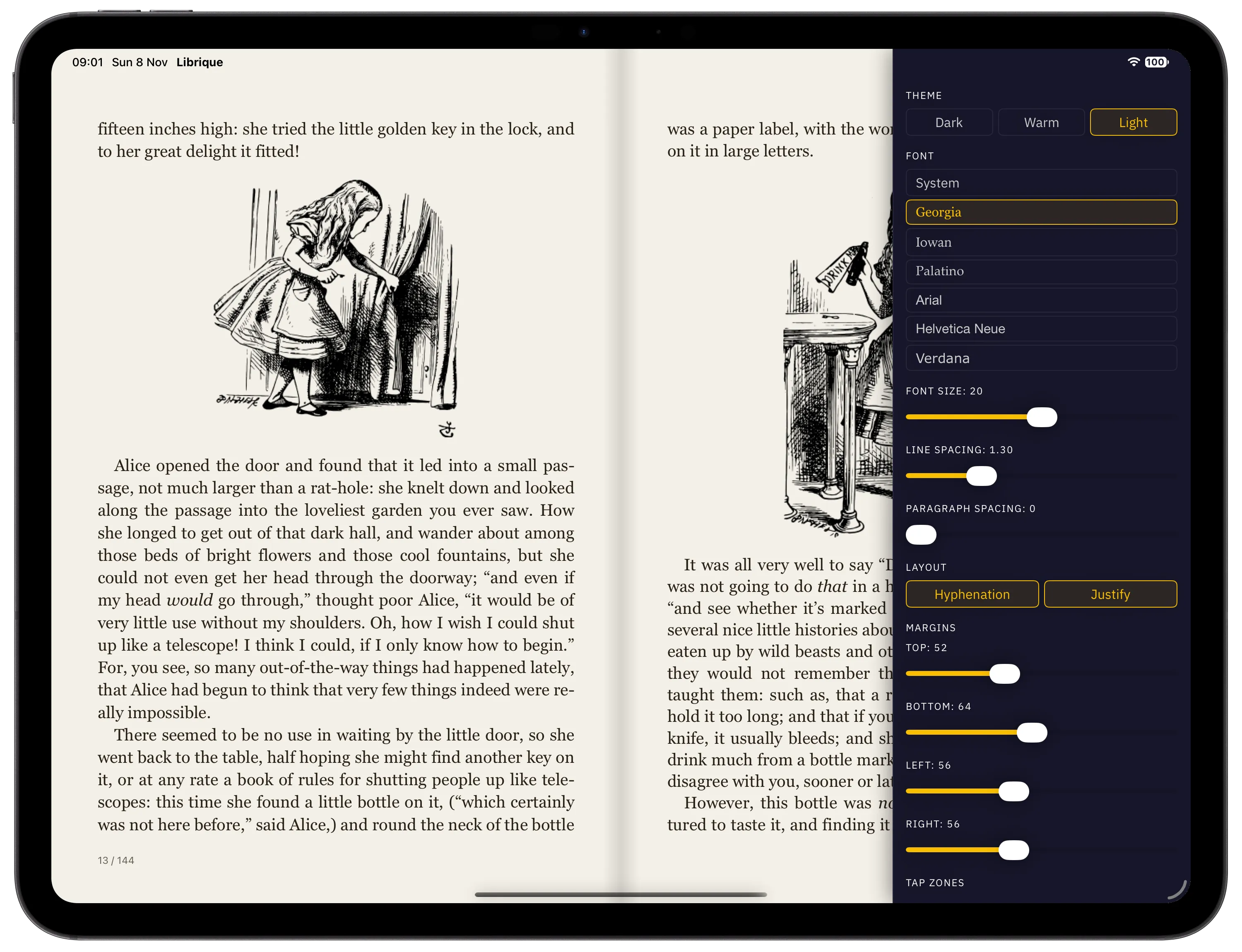
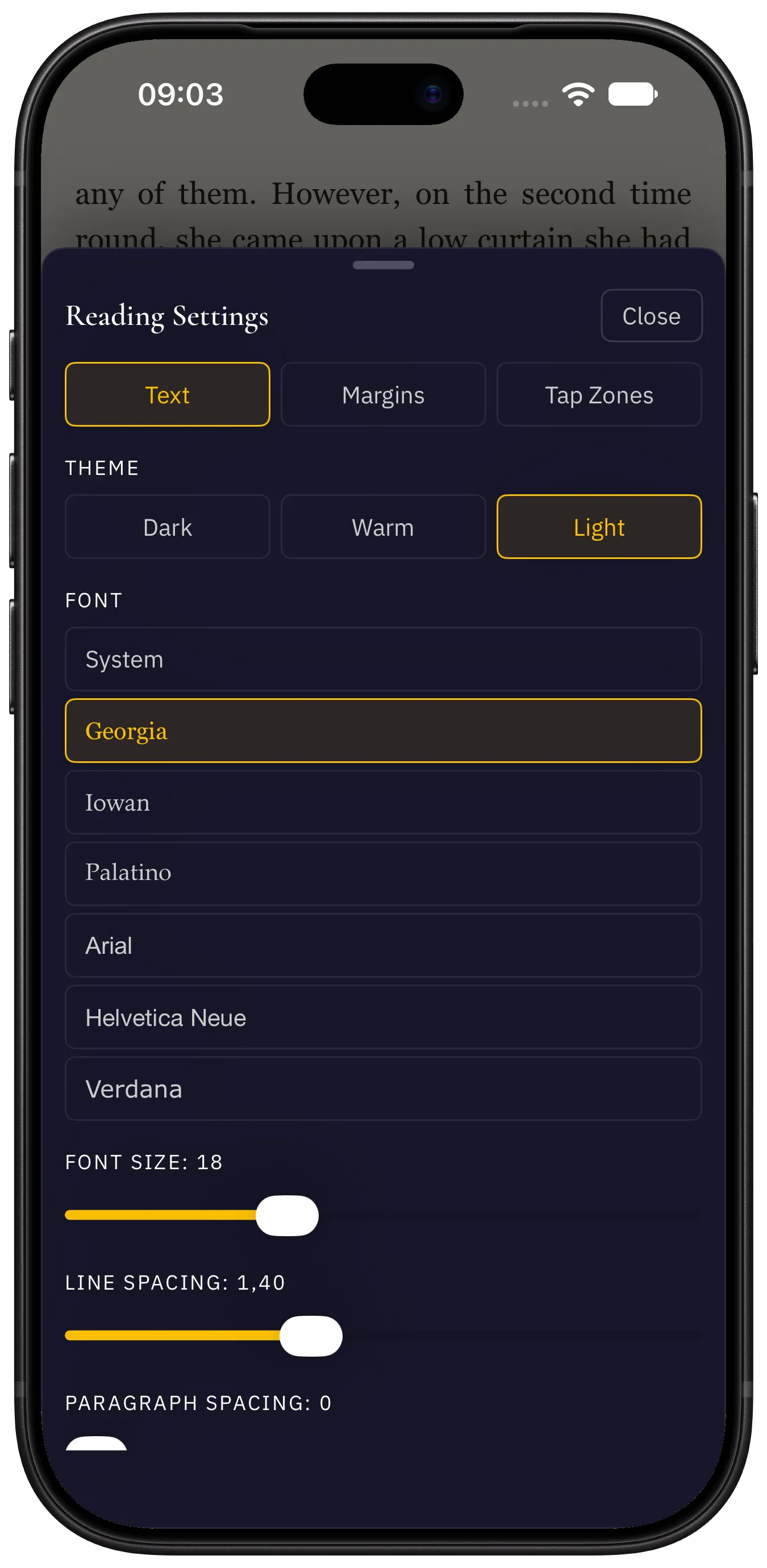
- Theme — dark, warm or light.
- Font — the font of the book text.
- Font Size, Line Spacing, Paragraph Spacing.
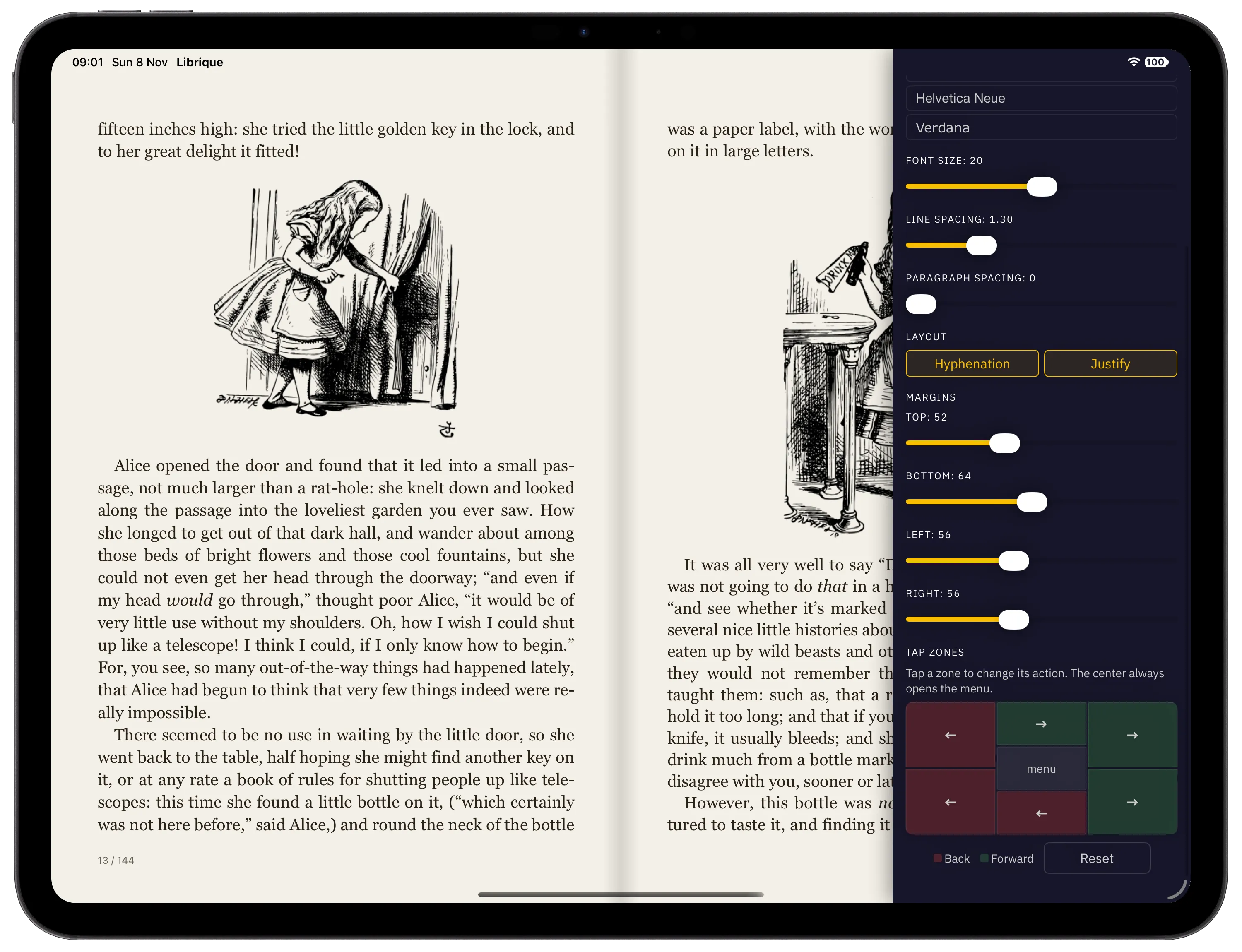
- Layout — hyphenation and justified text.
- Margins — space between the text and the screen edges: top, bottom, left, right.
- Tap Zones — a tap on a zone switches its action between back and forward. The center always opens the menu. Reset restores the default zones.
On iPad the settings open as a panel on the right, with tap zones at its end. On iPhone the settings are split into the Text, Margins and Tap Zones tabs.