
OPDS Catalogs
An OPDS catalog is a book server that publishes its collection in the OPDS format. Examples are the Calibre content server, Project Gutenberg and many public and home libraries. Librique shows the sections and books of a catalog, searches it and downloads books into the library.
The app has no catalogs preinstalled. Catalogs are added in Settings.
Adding a catalog
- Open Settings: on iPad, in the sidebar; on iPhone, in the ☰ menu. On iPhone, a catalog can also be added from the Catalogs tab.
- In the OPDS Catalogs section, tap + Add Catalog.
- Fill in the form:
- Title — the name shown in the list of catalogs. Required.
- Address — the full address of the catalog, starting with
https://orhttp://. Required. - Username, if sign-in is required and Password — only for catalogs that require signing in.
- Tap Add.
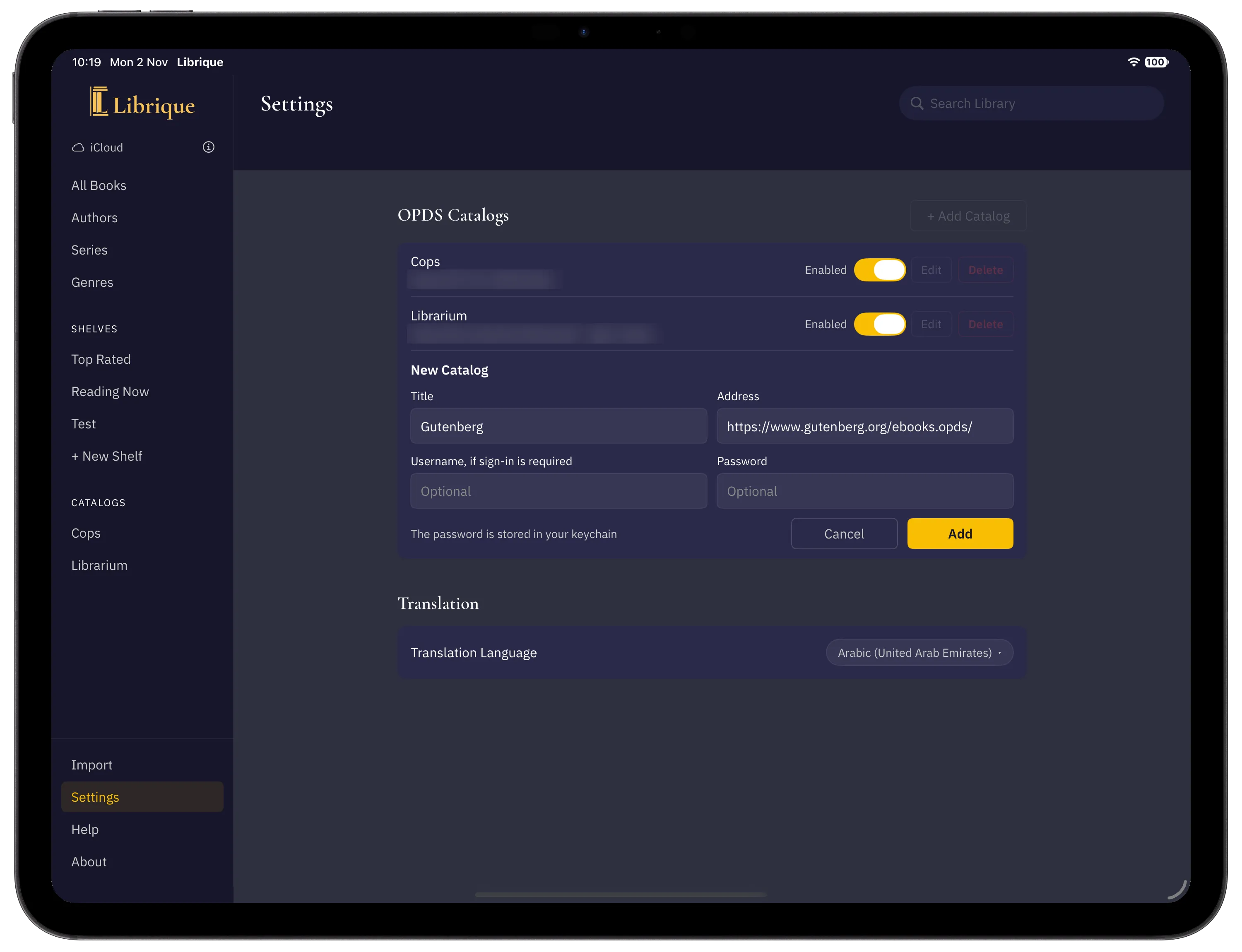
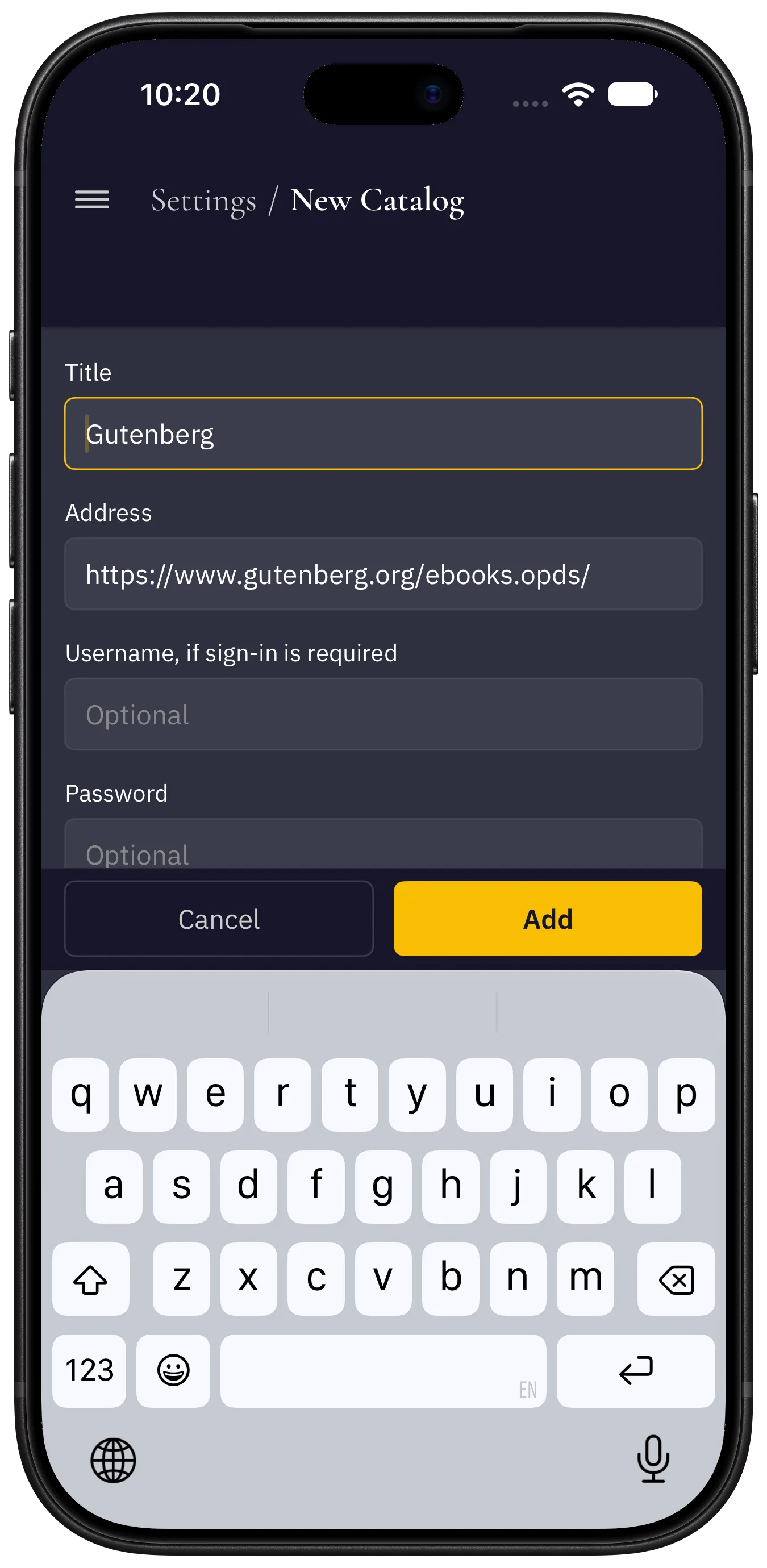
The app first opens the catalog with the entered address and sign-in details. The catalog is saved only if it opens. Otherwise, a message appears under the form, the fields keep their values, and the address or sign-in details can be corrected before tapping Add again.
Examples of addresses
- Project Gutenberg:
https://www.gutenberg.org/ebooks.opds/ - Calibre content server:
http://<computer address>:8080/opds. The server is started in Calibre under Preferences → Sharing over the net. 8080 is the default port.
Local network
Catalogs on the internet must use https://. An http:// address works only on the local network: by IP address, by a name like name.local or by a name without a domain.
The first time the app connects to the local network, the system asks for permission. If permission was denied, it can be turned on in the device settings: Settings → Privacy & Security → Local Network → Librique.
Signing in
If a catalog requires signing in, the username and password are entered in the catalog form. The password is stored in iCloud Keychain, so the catalog opens on the other devices without entering the password again. If the password is not available on the device or was changed on the server, the catalog asks for it when opened.
Changing, turning off and deleting a catalog
The list of catalogs is in Settings, in the OPDS Catalogs section.
- Enabled turns a catalog off without deleting it. A catalog that is turned off is hidden from the list of catalogs and from search results; its address and password are kept.
- Edit opens the catalog form. Save checks the catalog the same way as Add: if the catalog does not open with the new details, the previous ones stay in effect.
- Delete removes the catalog after confirmation. On iPhone, Delete Catalog is at the bottom of the catalog form.
The list of catalogs syncs through iCloud together with shelves: a catalog added on one device appears on the others.
Browsing a catalog
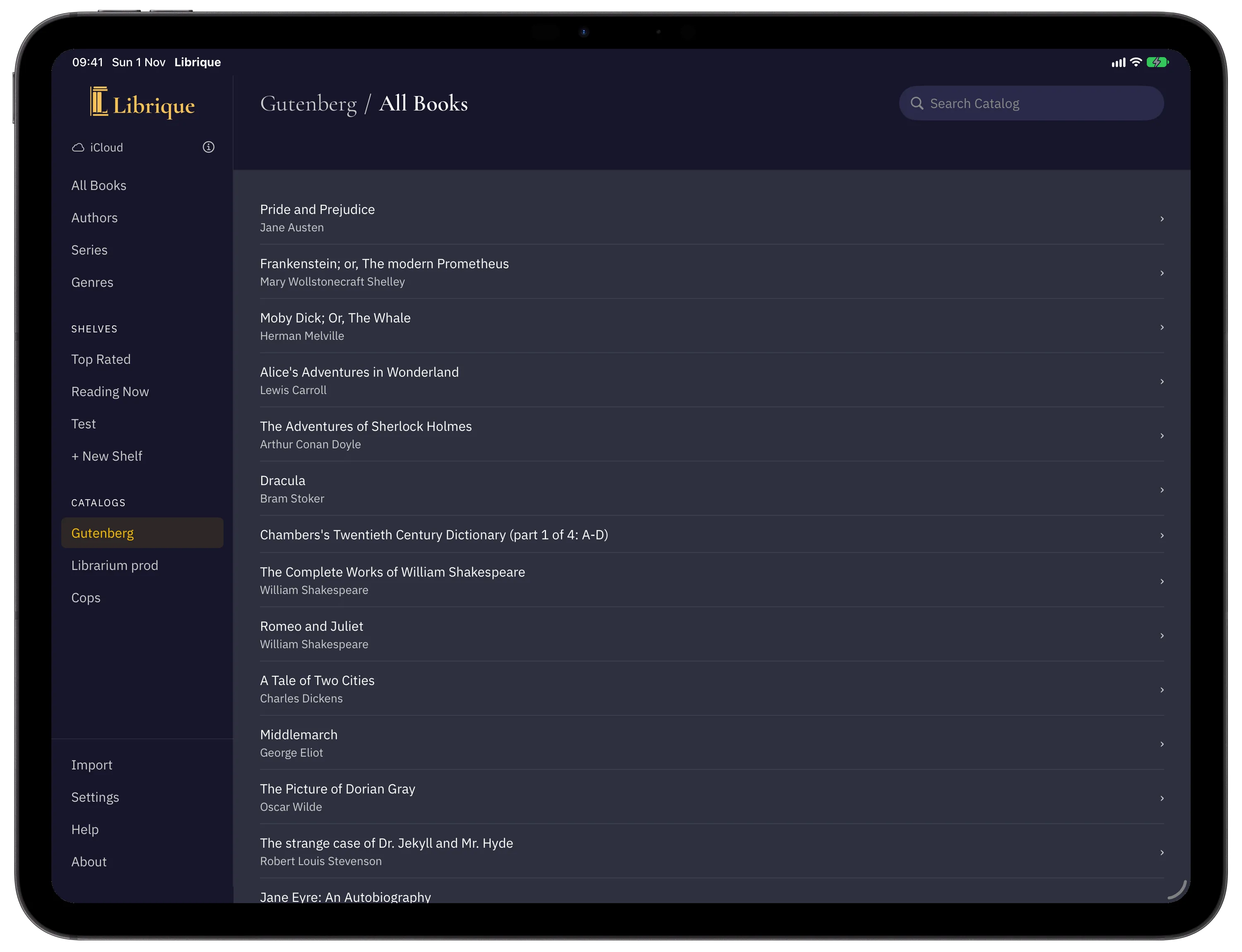
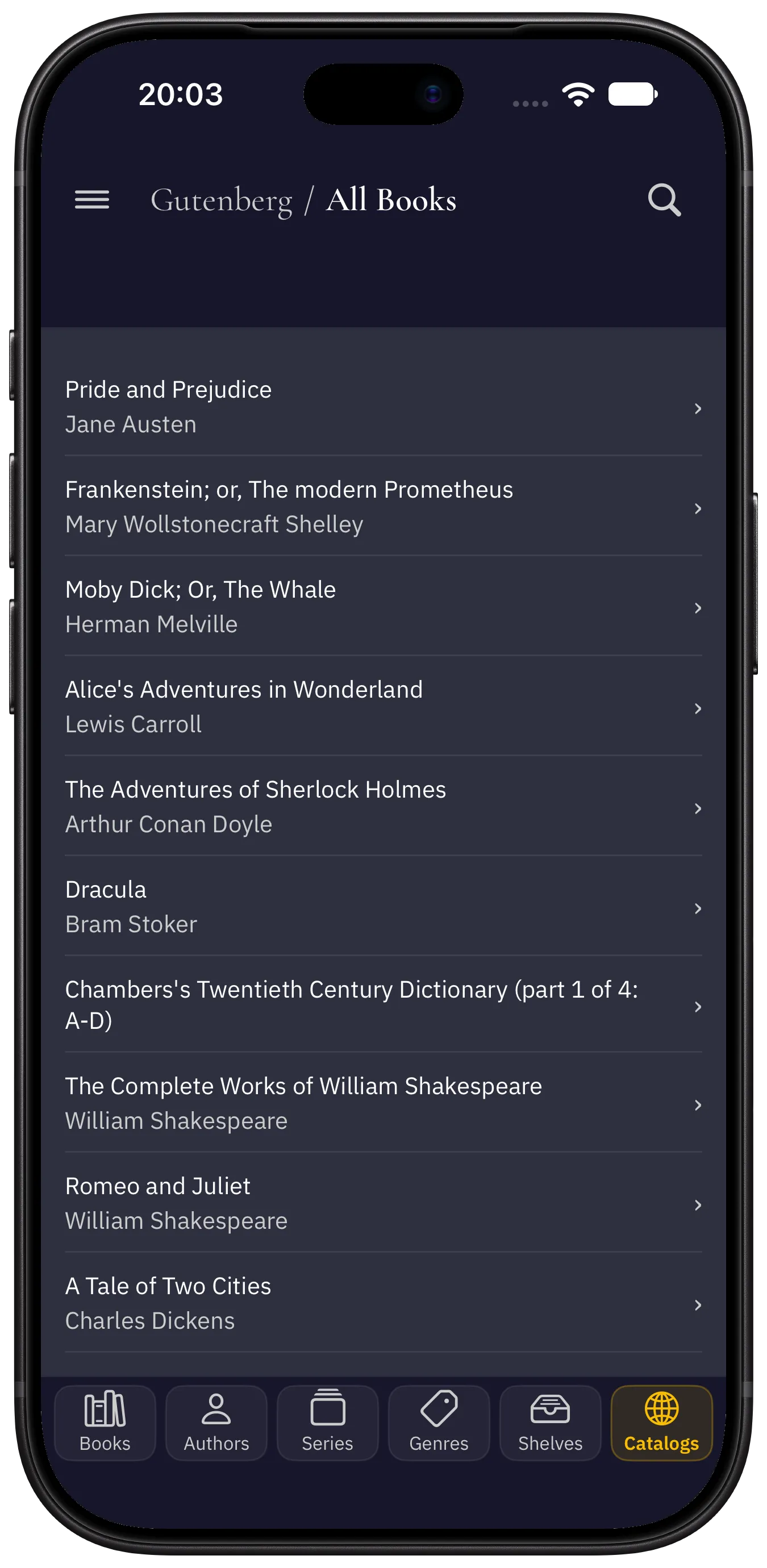
Catalogs are in the Catalogs section of the sidebar on iPad and on the Catalogs tab on iPhone.
- Sections are shown as a list, books as a grid of covers. Some catalogs, such as Project Gutenberg, show books as a list without covers; the cover is on the book page.
- The line above the title shows the previous level; tapping it goes back. Going back keeps the scroll position.
- Tapping the catalog name in the sidebar returns to the start of the catalog.
- If the server provides filters or sorting, they are shown above the books. Reset All clears the choice.
- A section shows the latest contents each time it is opened.
Searching a catalog
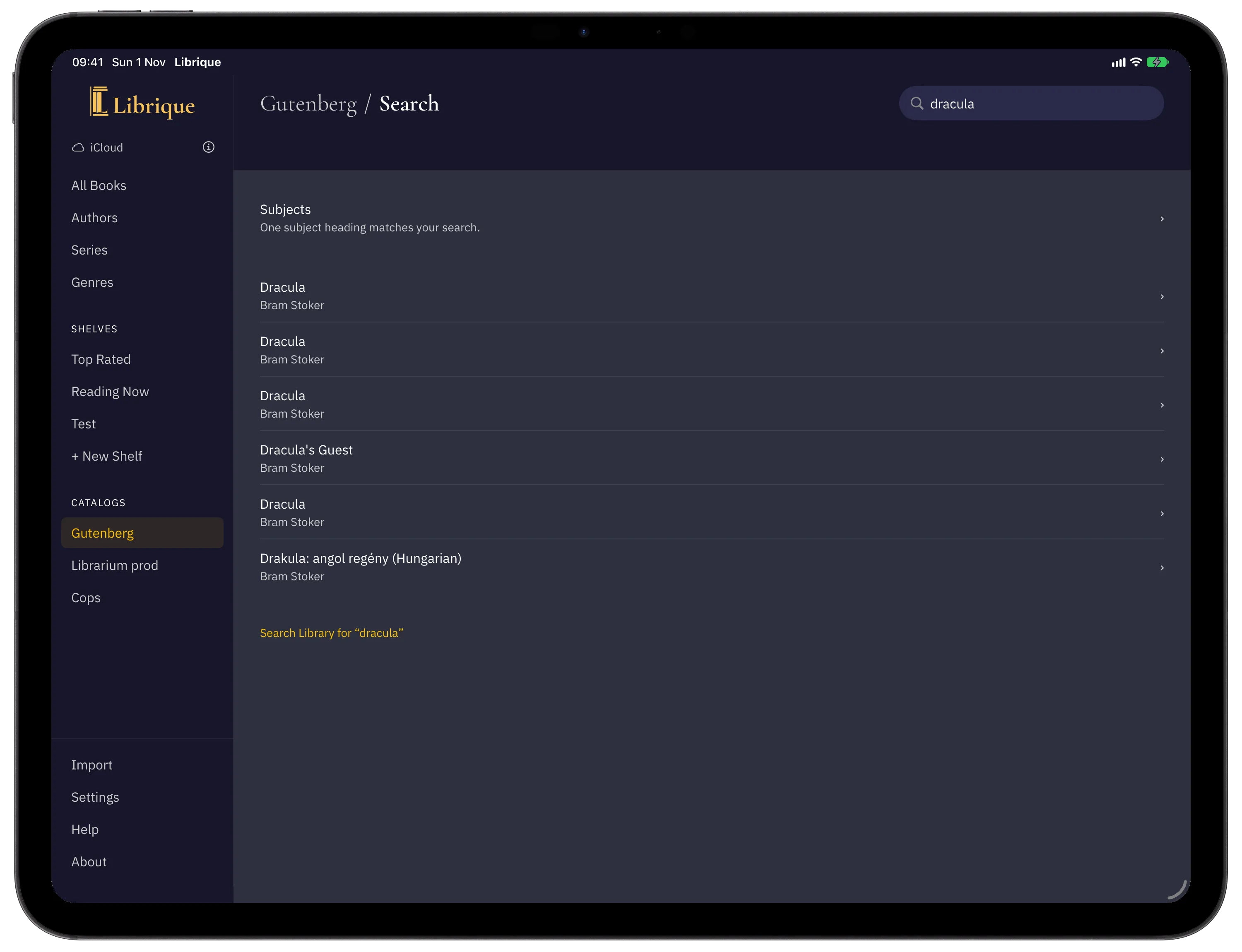
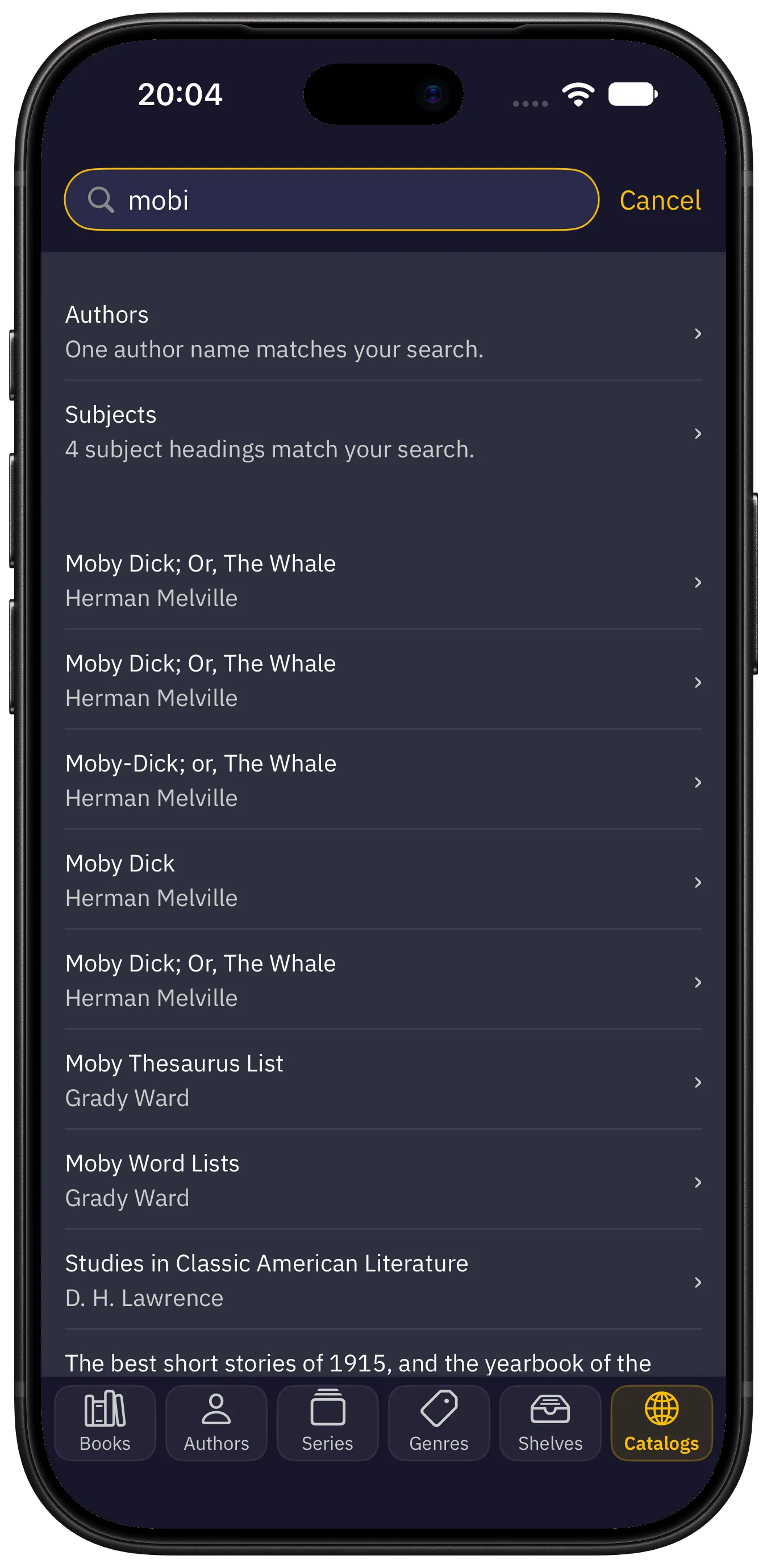
When a catalog is open, the search field at the top of the screen searches the catalog server: Search Catalog. The search starts when Return is tapped. If the server does not support search, the field is unavailable.
Library search results end with lines like Search Project Gutenberg for “…”, one for each catalog that supports search.
Downloading books
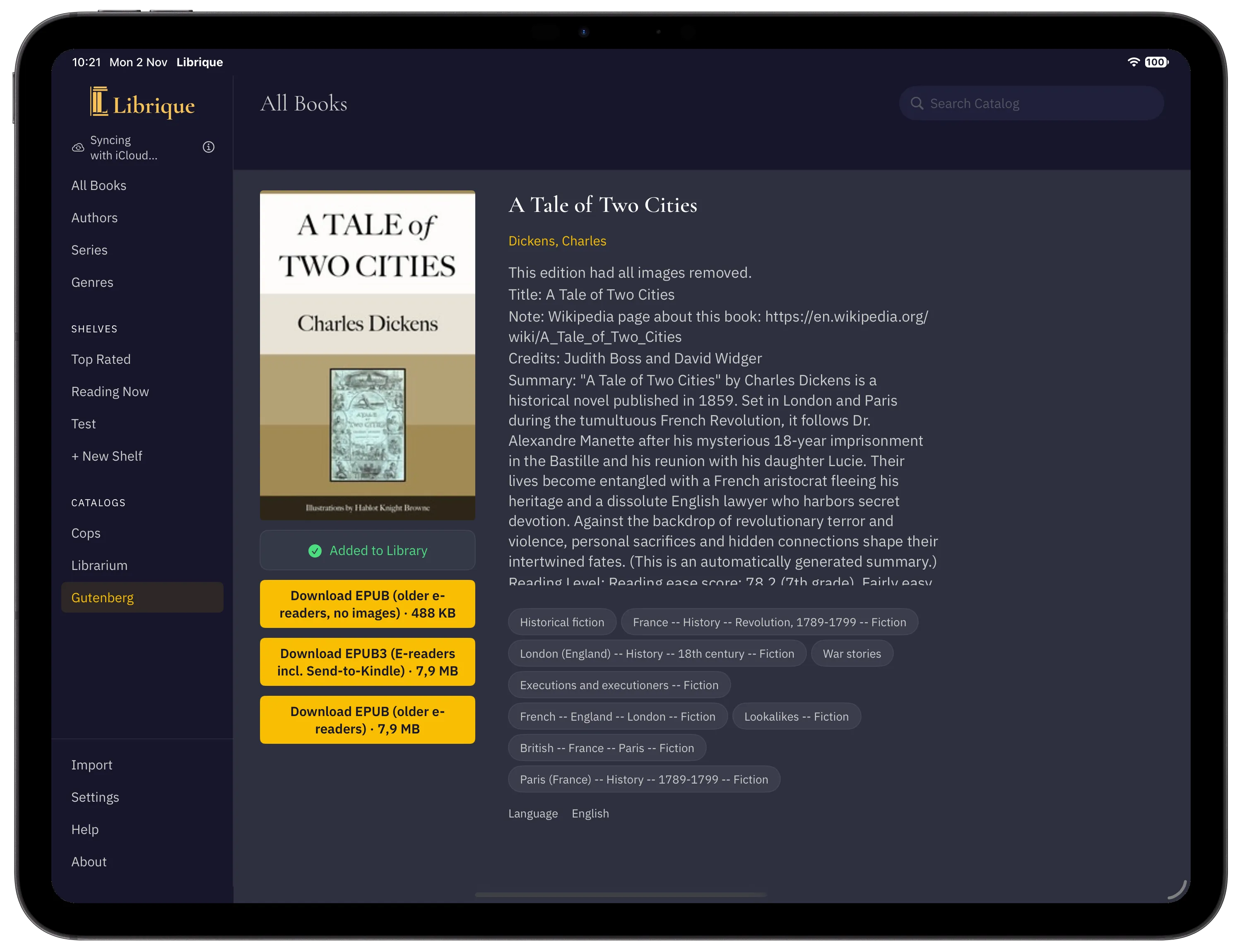
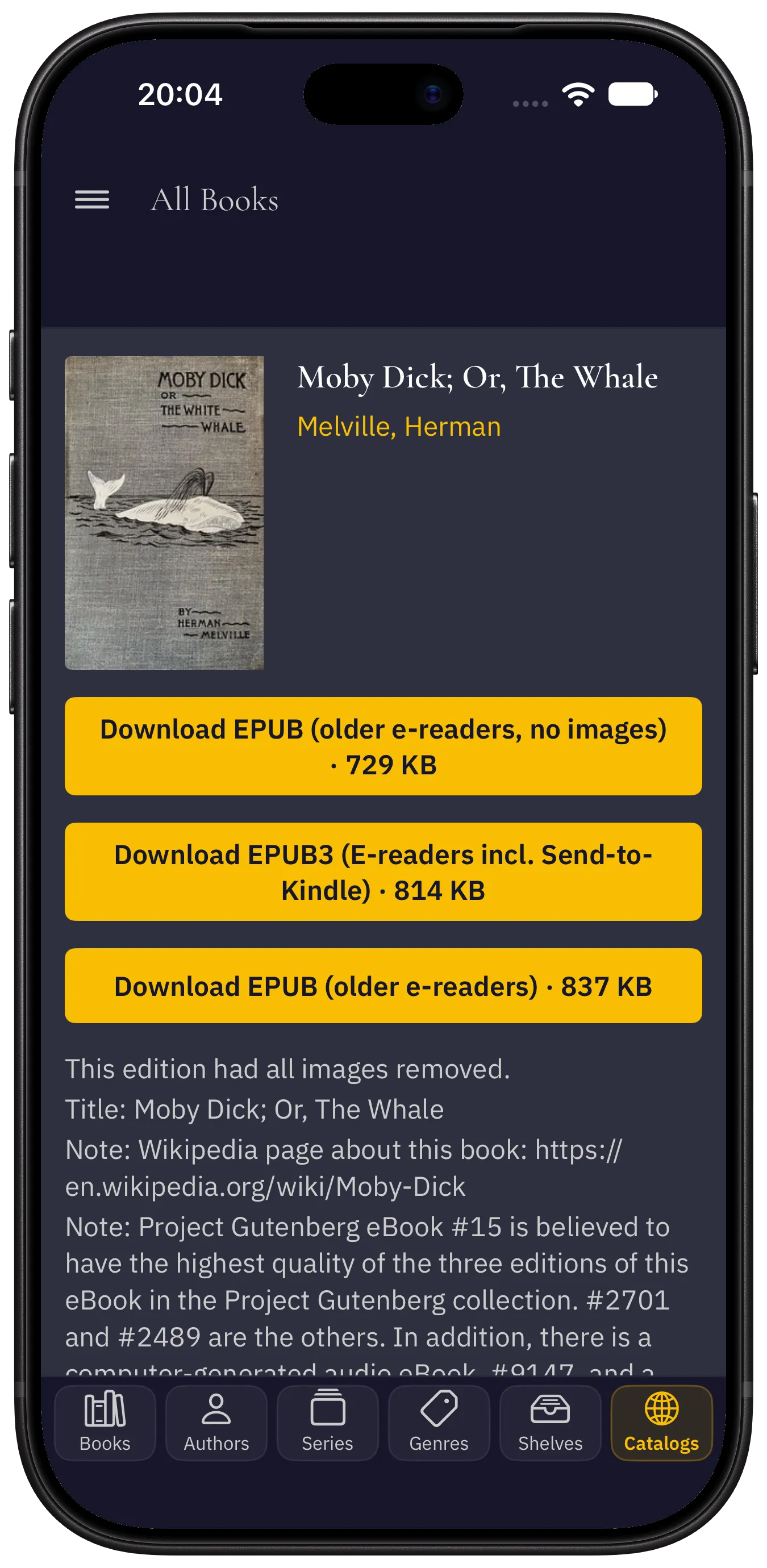
The book page has a download button for each format the app opens: EPUB, FB2 and PDF, including files in a ZIP archive. The button shows the format and, if the server reports it, the size. Download Sample downloads a sample if the catalog offers one.
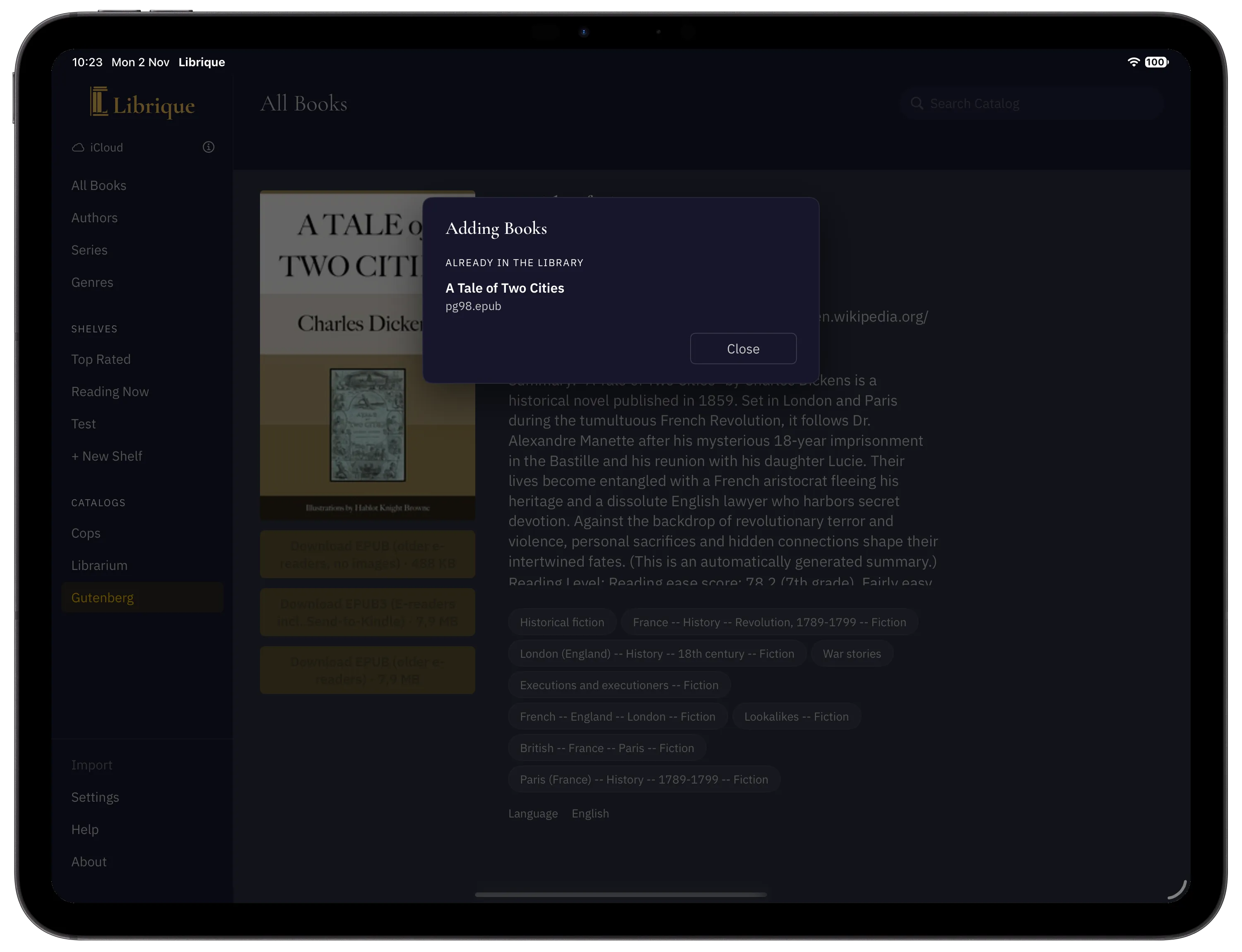
The downloaded book is added to the library the same way as a file from the Files app. The book page stays on the screen and shows the progress and then Added to Library. Leaving the book page does not cancel the download. If the book is already in the library, the Adding Books window lists it under Already in the library.
A book without any of these formats shows No Supported Format.
Messages
Message | Meaning |
|---|---|
Enter the full address, starting with http:// or https:// | The address has no |
No internet connection | The device is offline. |
The catalog is not responding | The server did not answer or reported an error. |
No OPDS server found at this address | A server answered, but not with an OPDS catalog. Check the address. |
Incorrect username or password | The server rejected the sign-in details. |
Sign-in is temporarily blocked. Try again in a few minutes. | The server blocked signing in after several failed attempts. |
The catalog is available only over an insecure connection. Use an https address. | An |
The catalog server certificate failed verification. A certificate trusted by the device is required. | The server uses a self-signed or untrusted certificate. |
The server denied access | The server refused to show a section. Try Again repeats the request. |
Could not download the book | The download failed after several attempts. |