
Translation
Intelligent translation is available starting with Librique 1.1.
A selected passage of a book can be translated. Without any setup, translation is done by Apple's built-in on-device translator. With intelligent translation, the passage is translated by a language model from Anthropic, OpenAI or Google Gemini; this requires your own API key.
Translating a passage
Select a passage and choose Translate in the selection menu. The translation window opens with the selected passage and its translation.
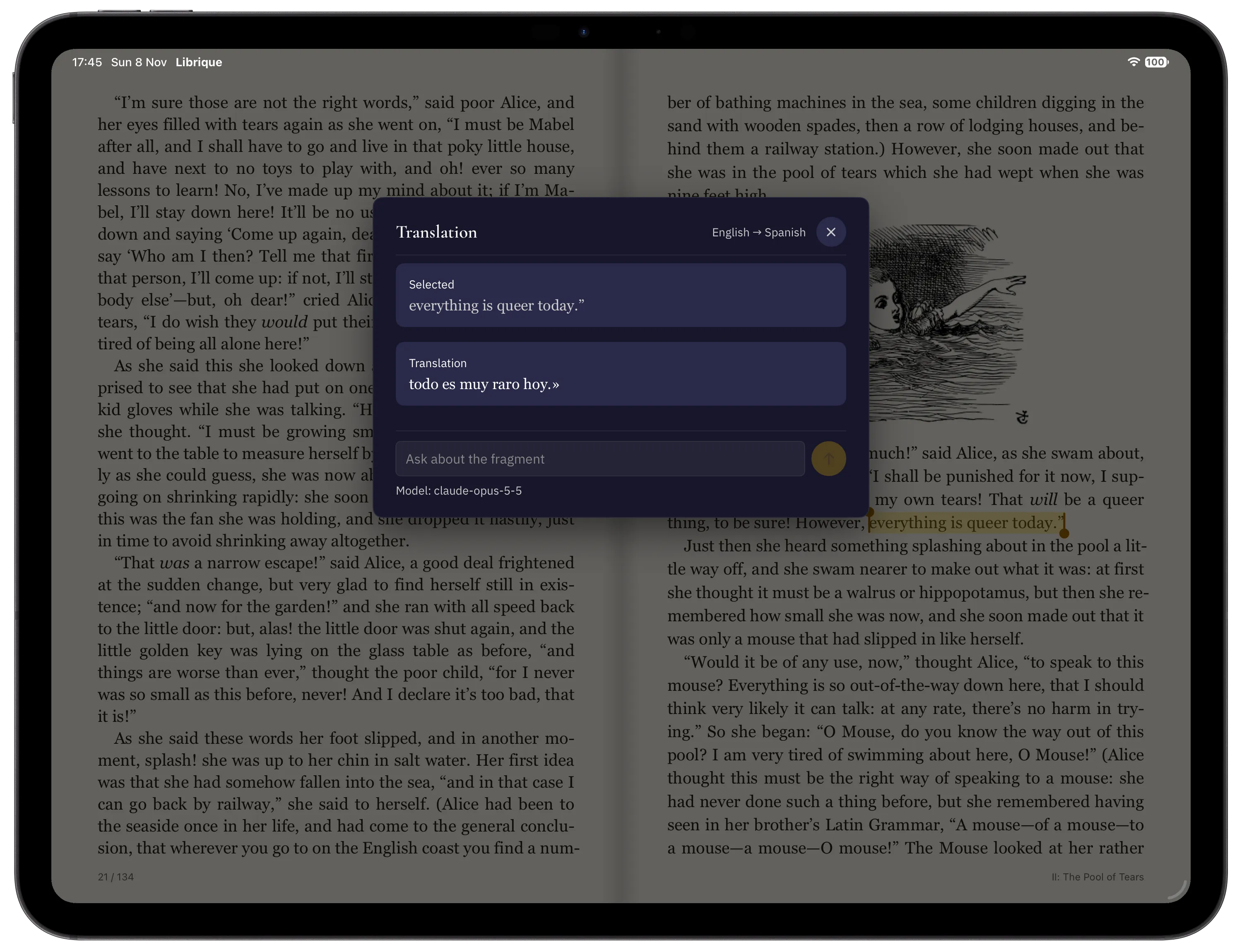
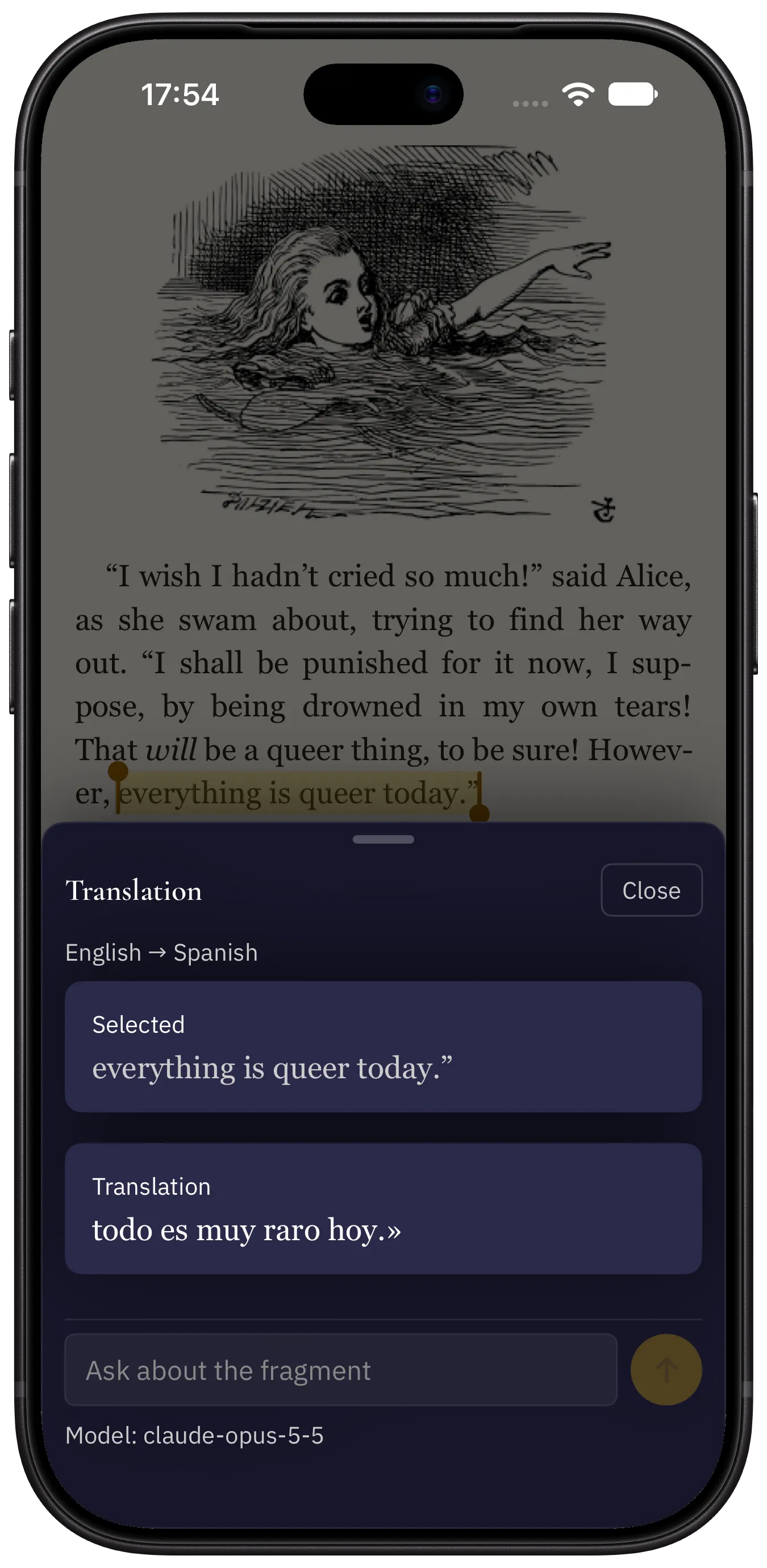
The model produces a literary translation that takes the paragraph and the book into account. If the passage contains an idiom, wordplay or an allusion that is lost in translation, a short note follows the translation.
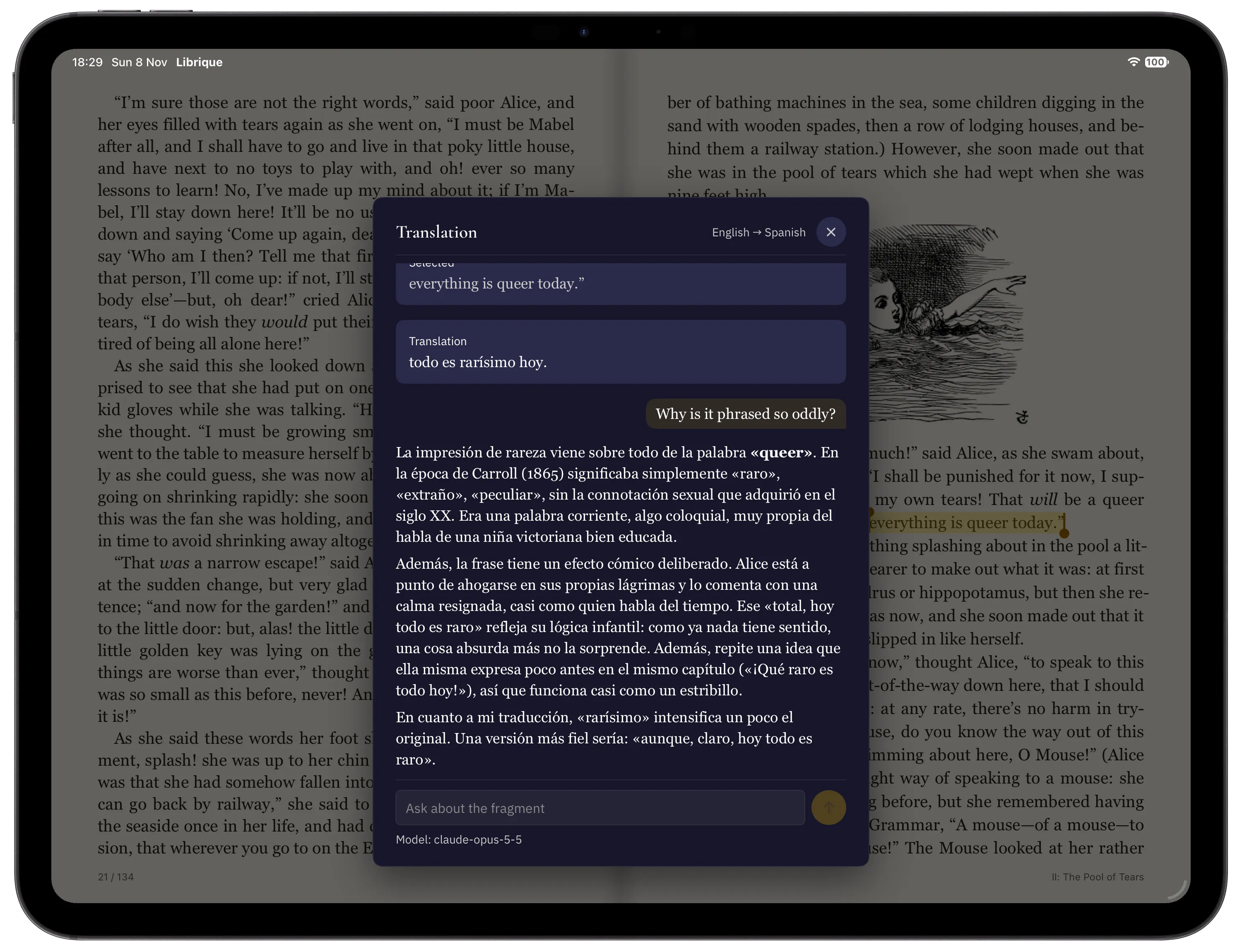
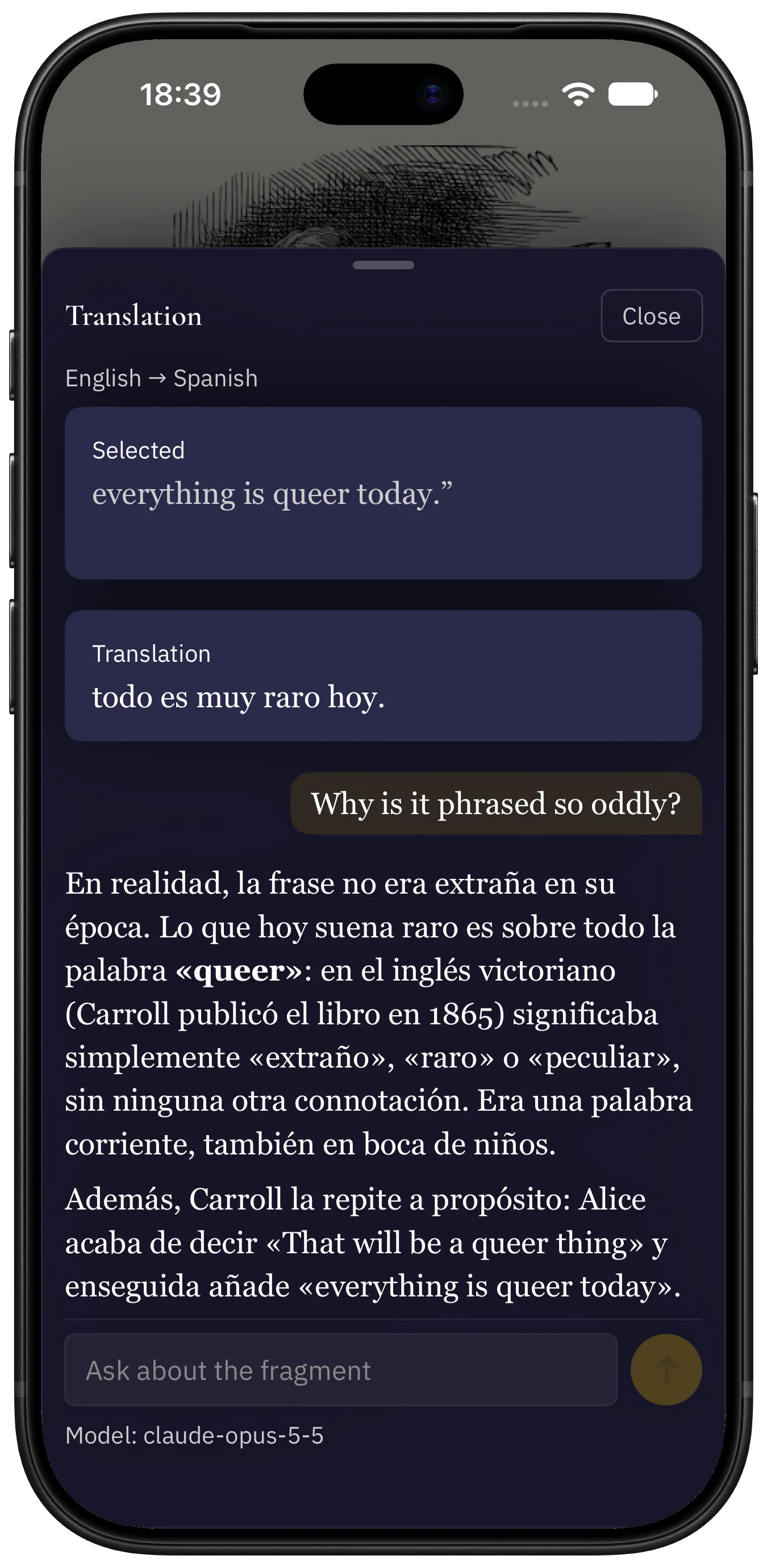
After the translation, questions about the passage can be asked: the Ask about the fragment field and the Send button. Answers come in the translation language. The conversation is not saved.
Translation language
The language is chosen in Settings, in the Translation section, Translation Language. By default, it is the interface language. For the first translation, Apple's translator may need to download the language; this requires an internet connection.
Setting up intelligent translation
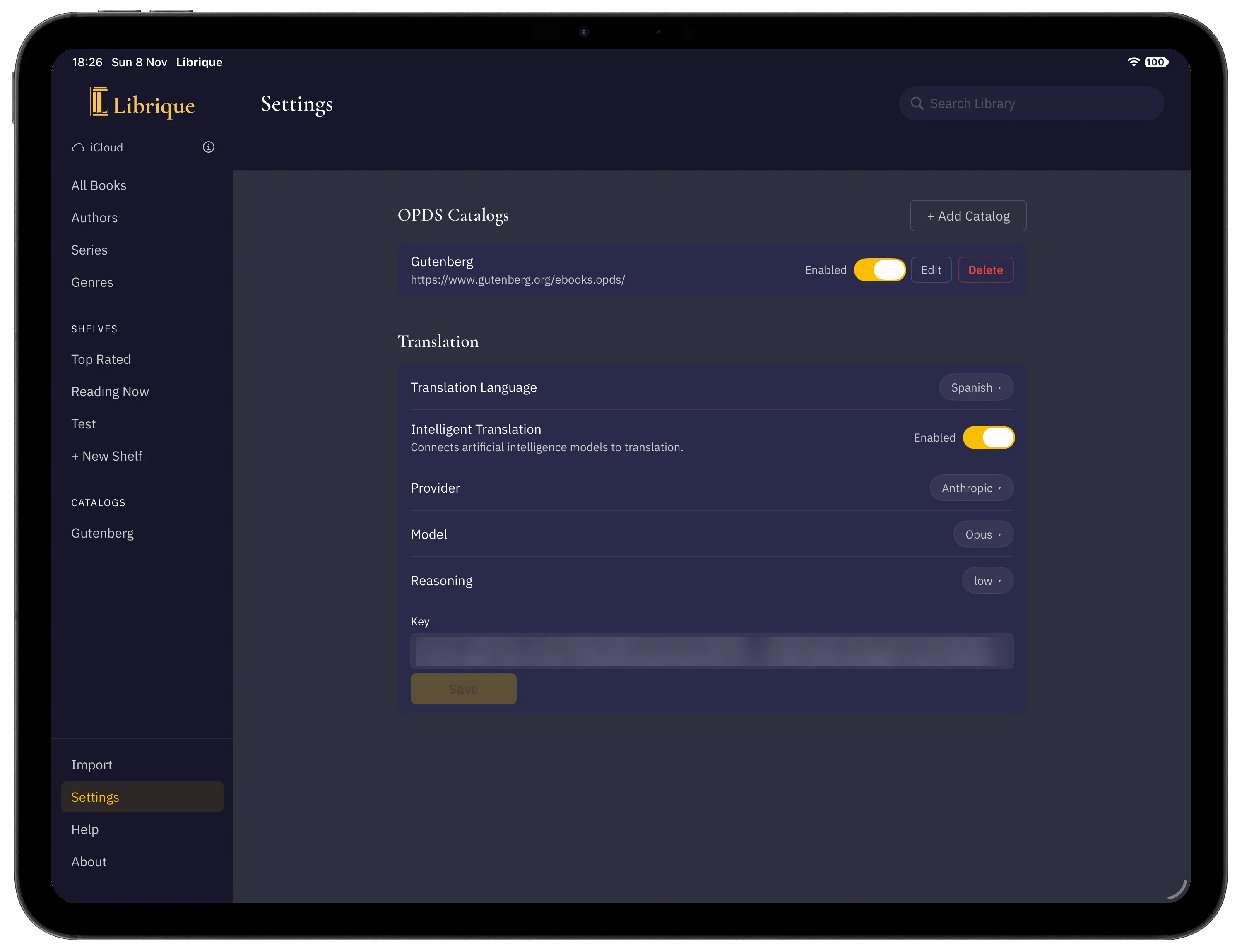
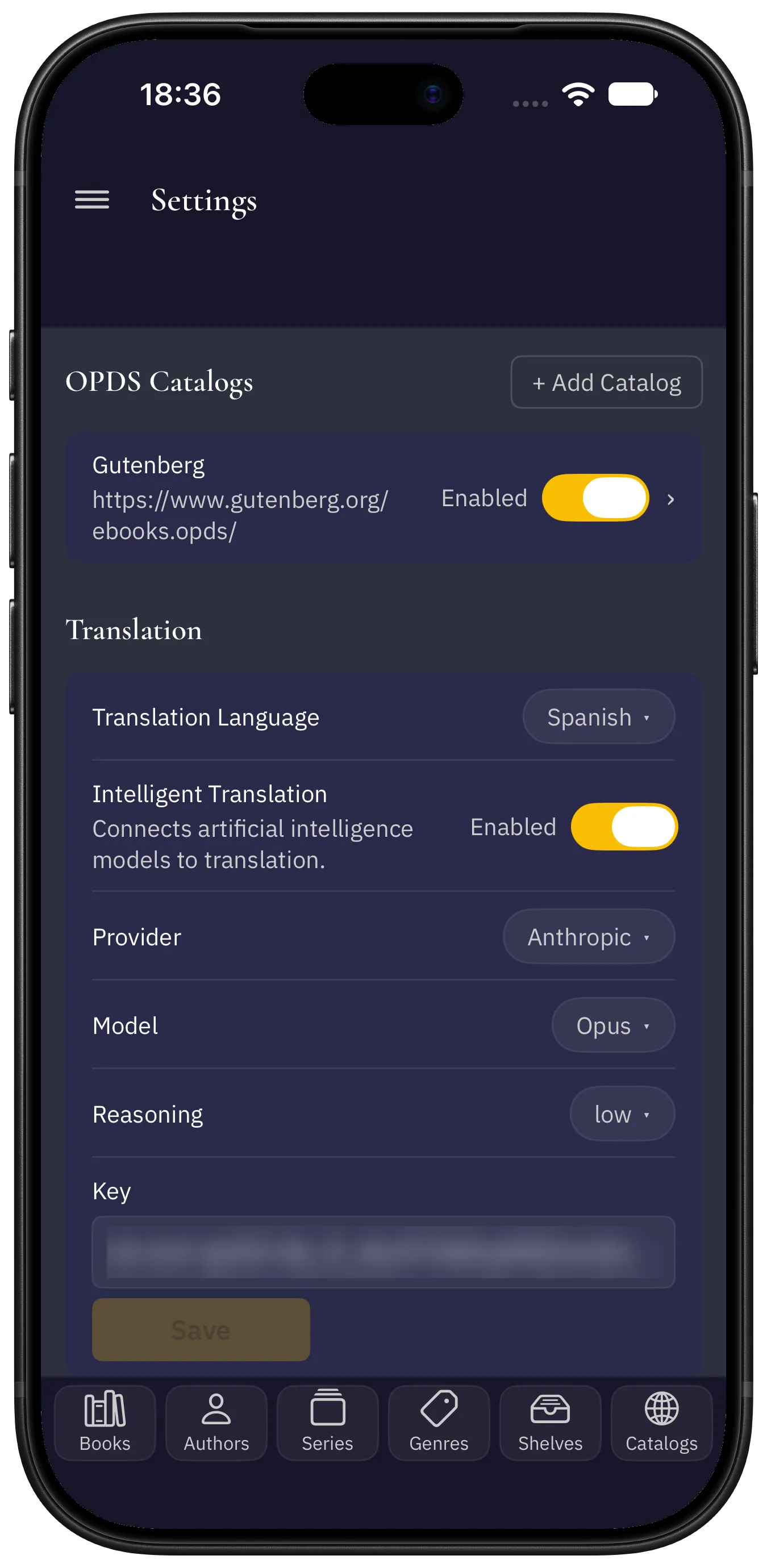
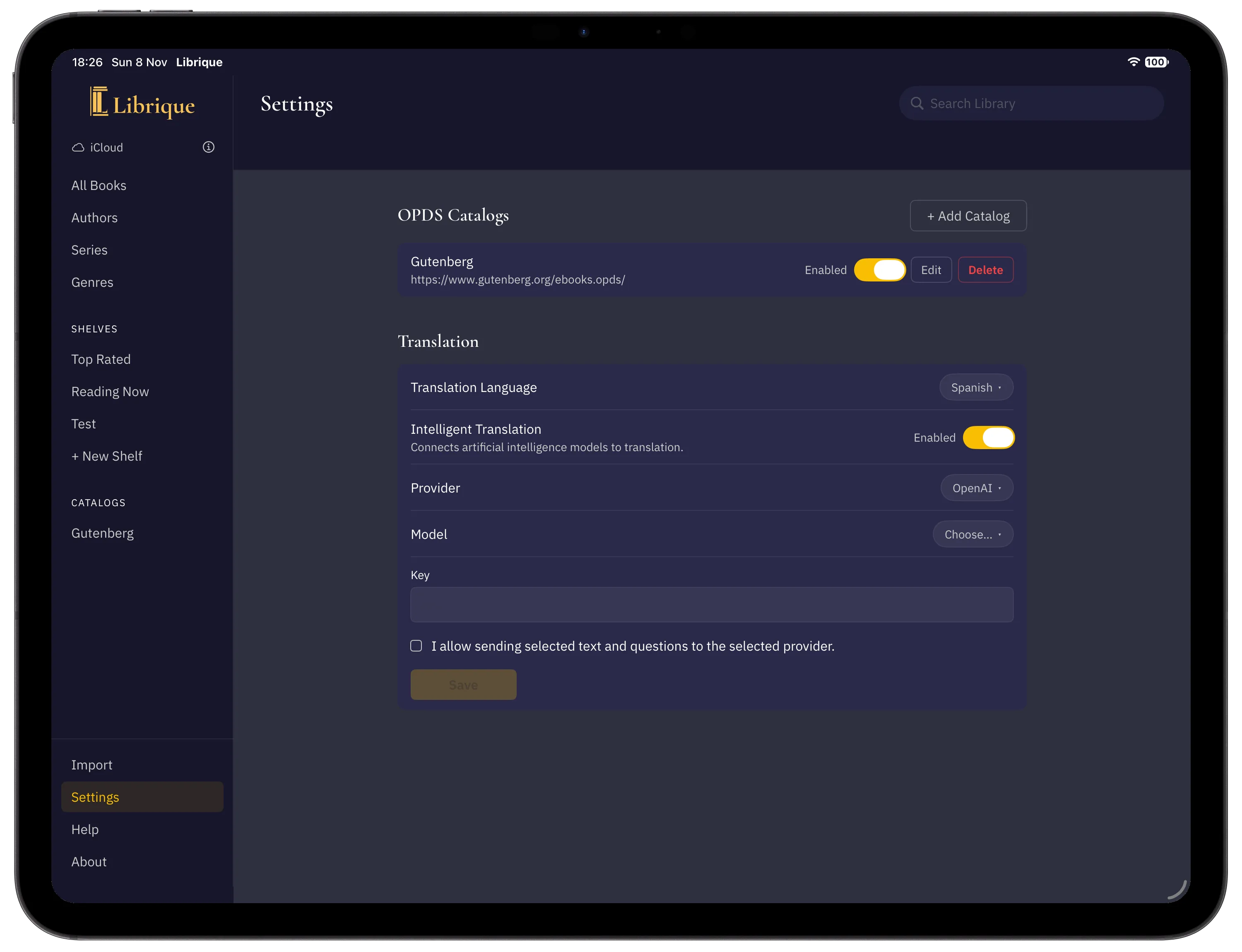
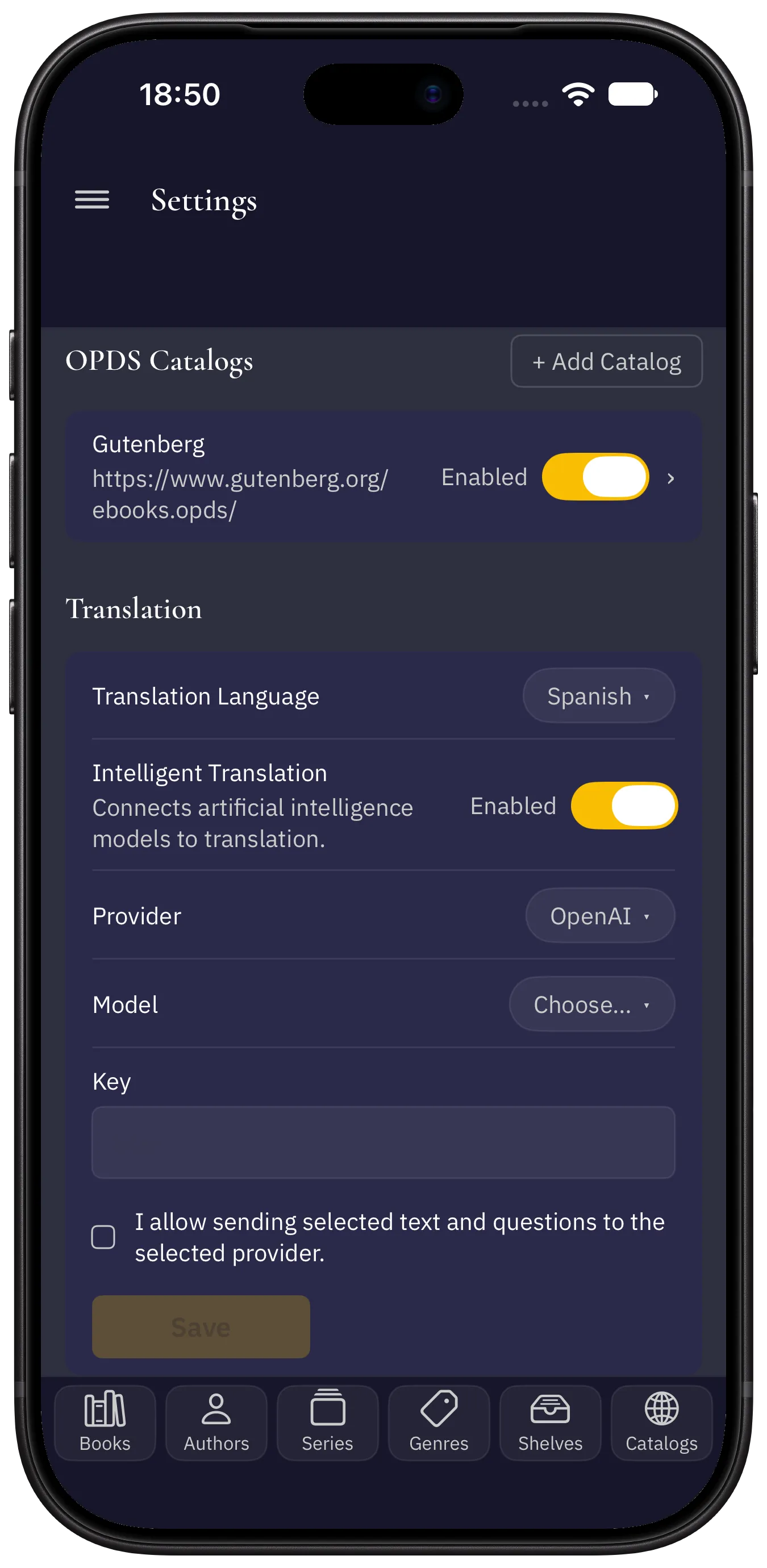
- Open Settings in the sidebar (on iPhone: the ☰ menu), the Translation section.
- Turn on Intelligent Translation.
- Choose the Provider and the Model. There is no Model row if the provider has a single model. Reasoning sets how thoroughly the model thinks the answer through: the higher the level, the slower and more expensive the answer. The default is low. There is no row if the model does not reason.
- Paste the Key.
- Check I allow sending selected text and questions to the selected provider. Until it is checked, the button is unavailable.
- Tap Add. The app checks the key with the provider: an accepted key is saved and "The key is valid" appears below the field; if the key is not accepted, "The key was not accepted" appears and nothing is saved.
Changing the model and reasoning
The model and the reasoning level take effect immediately; nothing needs to be checked. Each provider remembers its own model. When the model is changed, the reasoning level returns to its default.
Changing the provider
Each provider has its own key. When the provider is changed, the form shows its key and the model previously chosen for it. If this provider's key is not yet on the device, paste the key and give permission to send data again. The new provider starts working after Save and the key check; until then, the previous one translates. The previous provider's key is not deleted: when you switch back, the field is already filled in.
Replacing the key
Paste the new key into the Key field and tap Save. The new key is checked with the provider: an accepted key replaces the previous one; if it is not accepted, the previous key remains.
Turning off
When Intelligent Translation is turned off, Apple's translator translates again. Keys and model choices are kept. When it is turned back on, the app checks the saved key.
Other devices
The translation language, provider, models and reasoning level are the same on all iPads and iPhones signed in to the same Apple Account, if the library is stored in iCloud. The key is stored in the keychain and is transferred to other devices that have iCloud password sync turned on; otherwise, the key must be entered on each device. While the key is not on the device, Apple's translator translates, with "Intelligent translation is off: the key was not found on this device" and the Open Settings link below the translation.
If the provider or model was chosen on a device with a newer version of Librique, this device shows "Update the app to use…". Until it is updated, it translates with the model it used before.
Model list
The list of supported models is part of the app version and is updated with it. If the list has changed after an update, the message "The list of supported models has been updated" appears with the Go to Settings button.
- A model the provider is about to retire is marked deprecated. It translates as before, but it is worth changing.
- A retired model disappears from the list. If it was chosen, the choice is reset and "The previously chosen model is unavailable" appears: choose another model or another provider. If the provider has a single model left, it is chosen automatically.
Getting a key
The key is created in the provider's account:
- Anthropic — platform.claude.com/settings/keys
- OpenAI — platform.openai.com/api-keys
- Google Gemini — aistudio.google.com/apikey
Requests are billed at the provider's rates.
If translation fails
- The key was not accepted — the key has been revoked or entered with an error. Check it in Settings.
- The provider declined the request — the limit is exceeded or access is not paid for. Check your account with the provider.
- The previously chosen model is unavailable — the provider has retired the model. Choose another one in Settings.
- The translation language is not downloaded — Apple's translator needs an internet connection to download the language.
What data is sent
With intelligent translation, the provider receives the selected passage, the paragraph that contains it, the book's title, authors and language, and the questions. They are sent directly from the device to the provider; the developer does not receive them. See the Privacy Policy for details.